Incabus Cloud
Your company's IT services from Incabus in one place — work we have done, quotes and orders, IT operations, backup, your servers and your Microsoft 365 licences.
Incabus Cloud is the customer portal where you see and manage the services your company gets from Incabus. Instead of searching through emails and invoices, you find everything in one place:
- Time reports — every piece of work we have done for you, line by line, with the invoice it was billed on.
- Orders — your quotes and orders, and a button to approve a quote directly.
- Microsoft 365 — your subscriptions and how many licences you have, with prices, and the option to add or remove licences yourself.
- Licence catalogue — every Microsoft 365 product we sell, with prices.
- Cloud Server — your servers with us, with prices, backups and snapshots, and the option to start, shut down and resize them yourselves. See Cloud Server.
- Firewalls — the firewalls protecting your servers, and their rules. See Firewalls.
- IT operations — the computers and servers we manage for you, with your agreement and what it costs. See IT operations.
- Cloud Backup — your backup accounts, what they store and cost, and the option to create and delete accounts yourselves. See Cloud Backup and Price calculator.
You can use the portal in English or Swedish, in light or dark mode, on a computer or on your phone.
Getting started
- Go to the portal and choose Sign in. You sign in with your Incabus account — the same account you use for our other services. See Sign in.
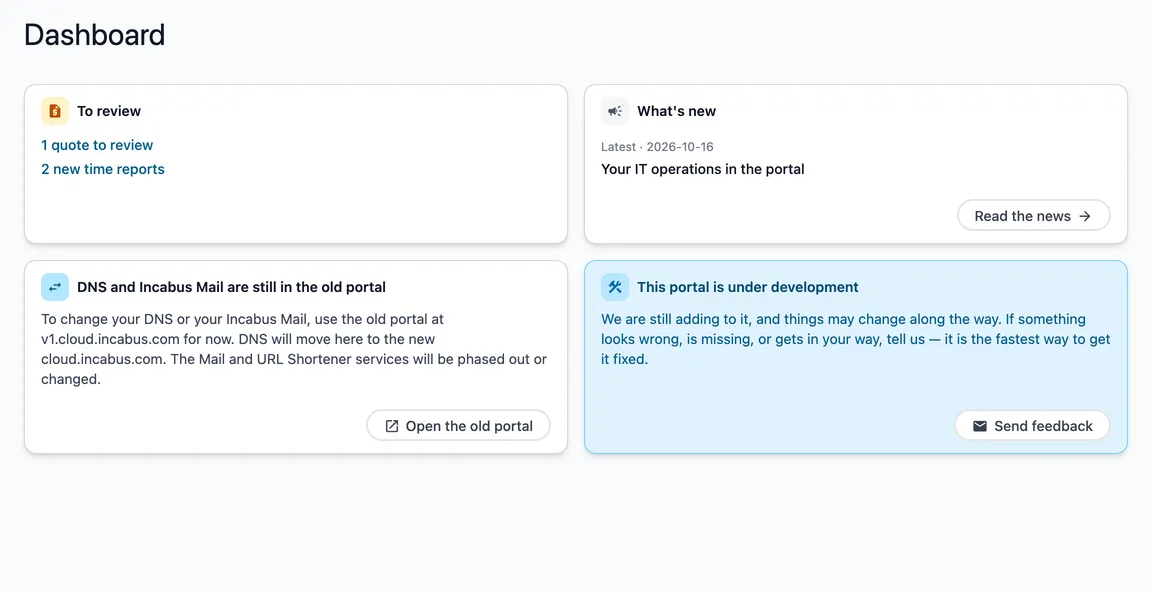
- You land on the Dashboard, which shows what is waiting for you right now.
- Use the menu on the left (behind the menu button on a phone) to open IT support, IT operations, Cloud Backup, Cloud Server or Microsoft 365.
Your account needs to be connected to your company. Anyone with an Incabus account can sign in, but there is nothing to show until we have connected your account to the company you work for. If the pages say Not connected yet, get in touch and we will set it up.
Who can do what
What you can do depends on your role at the company. The role belongs to your connection to that company, not to you as a person — if you represent two companies, you can be an owner at one and a member at the other.
| Member | Admin | Owner | |
|---|---|---|---|
| See time reports, orders, IT operations, backup accounts, subscriptions, the catalogue, servers and firewalls | ✅ | ✅ | ✅ |
| Approve a quote | ✅ | ✅ | |
| Add Microsoft 365 licences | ✅ | ✅ | |
| Remove licences, cancel a subscription | ✅ | ||
| Start, shut down and restart servers, take snapshots | ✅ | ✅ | |
| Change a server to a more expensive size | ✅ | ✅ | |
| Change a server to a cheaper size, delete snapshots | ✅ | ||
| Turn on backups for a server | ✅ | ✅ | |
| Turn off backups for a server | ✅ | ||
| Add, change and remove firewall rules | ✅ | ✅ | |
| Create a backup account | ✅ | ✅ | |
| Delete a backup account | ✅ |
When a button is missing because of your role, the page says so and tells you which role it takes. If you need a different role, ask an owner at your company or get in touch with us.
The header
The bar at the top is the same on every page. From left to right:
- Company — if you represent more than one company, choose which one you are looking at here. The choice applies on every page until you change it. Type to search by name or customer number. With only one company, its name is simply shown.
- Help (the question mark) — opens the help page for the page you are on, in a new tab, so whatever you are doing stays put. If the page has no help page of its own, you get the help start page.
- External portals (the grid icon) — shortcuts to the other services you use: Azure, Backup, Microsoft 365 admin, Incabus RMM and Incabus Support. Each opens in a new tab.
- Notifications (the bell) — what is waiting for you, such as a quote to review or new time reports. See Notifications.
- Contact us — send us feedback, a question about Microsoft 365 licences, or a request for IT support, without leaving the portal. See Contact us.
- Account menu — your name and email, Account management for your Incabus account (name, password, sign-in methods), Settings and Sign out.
When we release a new version of the portal, a bar may appear under the header: A new version of the portal is available. Nothing is lost — the next page you open loads the new version, or you can choose Reload the page when you are ready.
Tables work the same everywhere
The lists in the portal share the same tools:
- Search — start typing in the search box, or press
/to jump to it. - Filter and Date — narrow the list down. Show all clears a filter; Clear dates clears the date range.
- Refresh (the circular arrow) — fetches the latest data without leaving the page.
- Export — tick the rows you want and export them to PDF or Excel. The PDF opens in a new tab; the Excel file is downloaded, with amounts as numbers you can calculate with.
- Drag the edge of a column heading to make it wider. The portal remembers your search, filters and column widths on this device until you next sign in.
- On a phone, each row is shown as a card.