Firewalls
The firewalls protecting your company's servers, and which traffic they let in and out.
This page shows the firewalls protecting your company’s servers: which servers each firewall applies to, and which traffic it lets through.
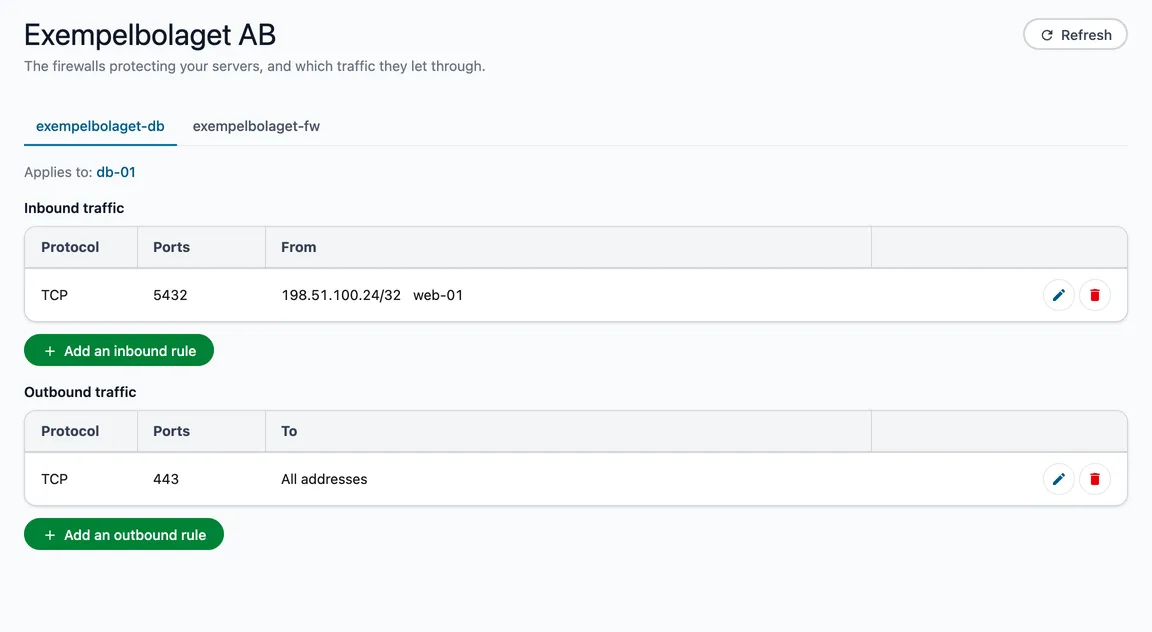
Open it under Cloud Server → Firewalls in the menu. Every role can see it; administrators and owners can also add and remove rules.
Which company?
The page shows the company selected in the customer picker in the header, like the server list. If your company has no servers in the portal yet, the same Get started with Cloud Server card is shown as there.
Reading a firewall
If you have several firewalls, each gets a tab of its own with its name; if you have one, it is shown directly on the page. Applies to lists the servers the firewall protects — click one to open the server. The link from a server’s page opens the right tab.
A firewall only lets through what its rules allow. Everything else is stopped.
| Column | |
|---|---|
| Protocol | TCP, UDP or ICMP (for example ping). |
| Ports | One port, a range such as 8000-9000, or All. |
| From / To | Where traffic may come in from, or go out to: All addresses, addresses or networks such as 203.0.113.0/24, your own servers by name — or a mix of them. |
Inbound traffic is what may reach the servers, outbound traffic what the servers themselves may send.
Add and remove rules
Below each table is Add an inbound rule or Add an outbound rule. The button opens a page of its own with the form, a few common examples, and which firewall and servers the rule applies to. Choose a type, such as SSH or HTTPS, and the protocol and port are filled in for you, then say where traffic may come from or go to — addresses, your own servers or all addresses, mixed in one rule if you like. How to fill in the form is on a page of its own.
The pen at the end of a row changes the rule: a page of its own opens with the form filled in, and you save once you have changed what should change. You then return to the firewall. The new rule is added first and the old one removed afterwards, so access is never cut off during the change. If the pen is grey, the rule has targets that cannot be changed here — add a new rule and remove the old one instead.
The bin removes the rule. Every change is confirmed, and it is rolled out within a few seconds.
⚠️ Removing a rule that lets in remote access — SSH on port 22, remote desktop on port 3389, or all ports — can lock you out of the server. The page warns you first. Make sure there is another way in.
We change a firewall’s name and which servers it applies to for you — get in touch.
Good to know
- If a firewall says Changes being applied, a change is being rolled out. It usually takes a few seconds, and the page updates by itself until it is done. To see the state right away, use Refresh at the top right.
- If it says a server is also protected by a shared firewall that Incabus manages, that is a firewall we use for several customers, for example for our own operations. It is not shown here.
- Each server’s own page lists the firewalls that apply to it.