Add or change a firewall rule
The form for a new or changed rule in one of your company's firewalls.
This page adds a rule to a firewall, or changes an existing one. You come here from Firewalls — the button below a table for a new rule, the pen on a row to change one.
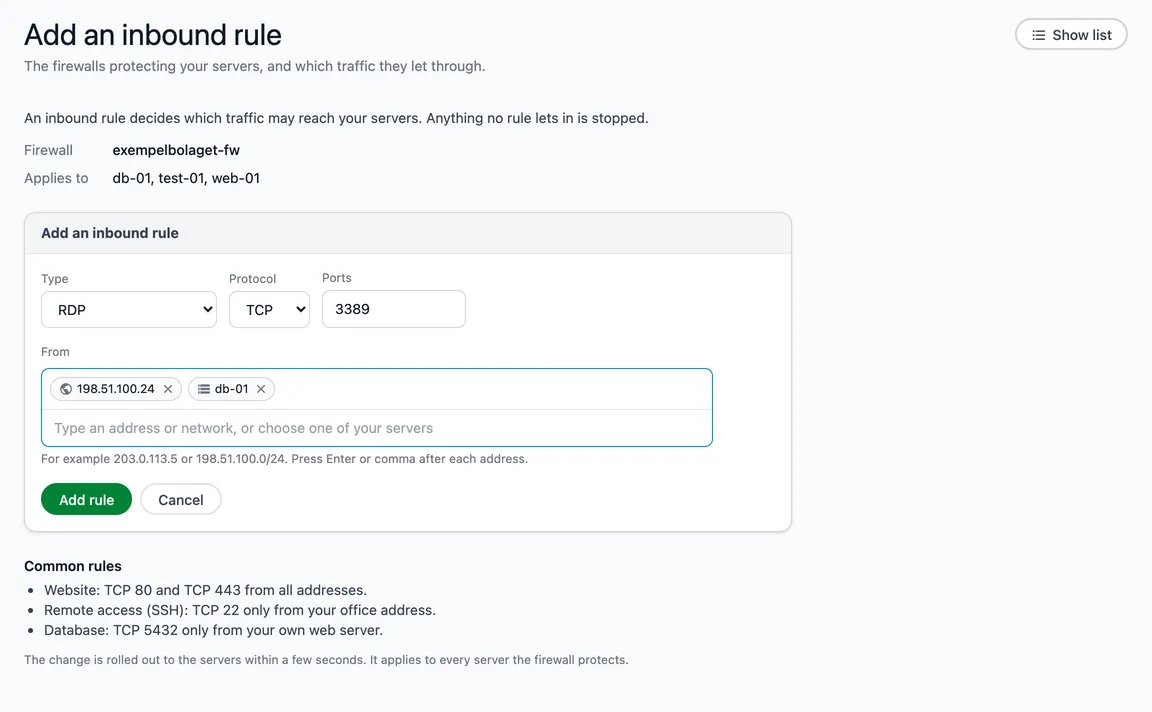
At the top it says which firewall it is and which servers it protects. If you are changing a rule, it also shows how the rule looks today.
Fill in the rule
- Type — what the rule is for. Choose a common service and the protocol and port are filled in for you: SSH (22), HTTP (80), HTTPS (443), RDP (remote desktop, 3389), MySQL (3306), PostgreSQL (5432), MongoDB (27017), DNS TCP and DNS UDP (53), or All TCP, All UDP and ICMP (for example ping). Choose Custom for anything else.
- Protocol and Ports — filled in by the type, and locked then. With Custom you choose yourself: TCP, UDP or ICMP, and one port or a range such as 8000-9000. ICMP has no ports.
- From or To — where traffic may come from, or go to. Type an address or network, such as 203.0.113.5 or 198.51.100.0/24, and press Enter or comma, or choose All addresses or one of your own servers in the list that appears. Each choice becomes a small label in the field, and addresses and servers can be mixed in one rule. The cross on a label removes it. If you paste several addresses at once, each becomes a label of its own.
Choose Add rule or Save the change and confirm. You then return to the firewall, and the change is rolled out within a few seconds.
Good to know
- A change is made in two steps: the new rule is added first, the old one removed afterwards. Access is never cut off during the change.
- If the rule concerns remote access (SSH, remote desktop), the page warns you — make sure your own address is still let in.
- A few common rules are listed at the bottom as examples.