A server
A server in detail — size, addresses, backups, snapshots and volumes — and starting, shutting down, resizing, turning on backups and taking snapshots.
This page shows one of your company’s servers: size, location, addresses, price and which firewalls protect it. Below that are four tabs: Manage, Backups, Snapshots and Volumes.
The addresses are the public IPv4 addresses — more than one if a movable address is attached to the server — the public IPv6 address if IPv6 is switched on, and the private address — the one your servers reach each other on within your own network. The button next to each copies it.
The number on a tab says how many there are (Off if backup is not switched on). The address in the browser follows the tab, so a link you pass on opens the same tab.
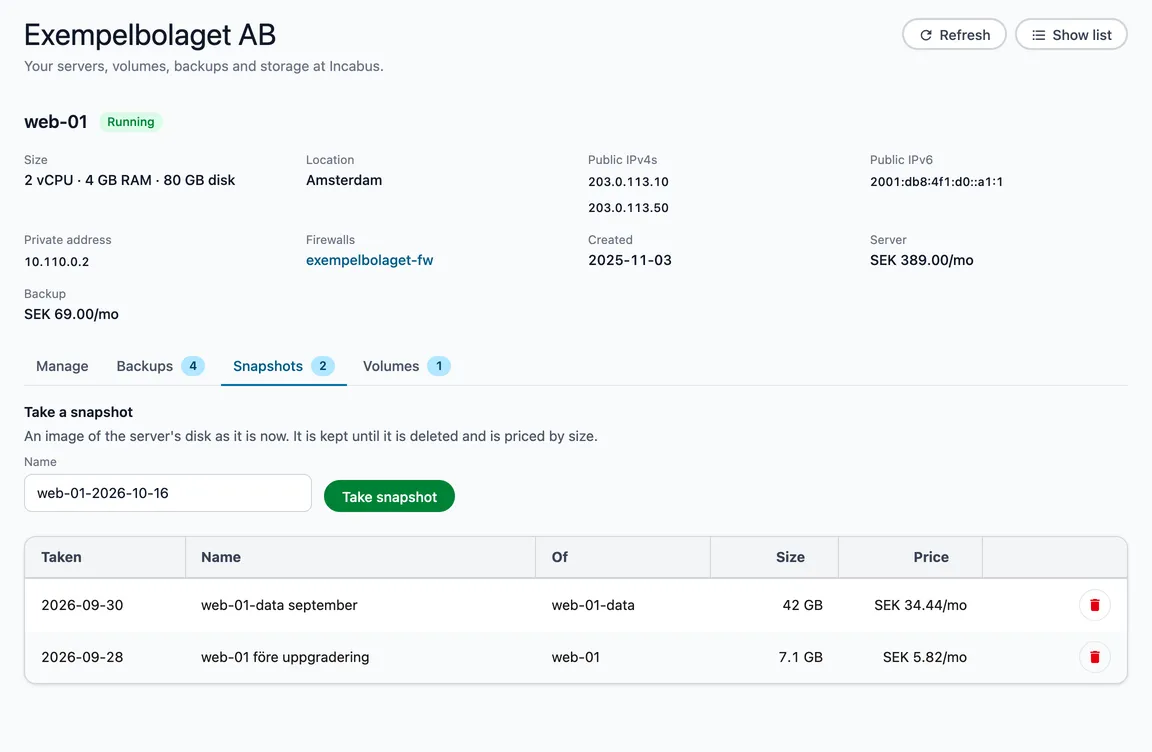
Firewalls lists the firewalls that apply to the server — click one to see its rules. If it says the server is also protected by a shared firewall that Incabus manages, that one is not shown here.
Open it by clicking the server’s name in the server list.
Manage
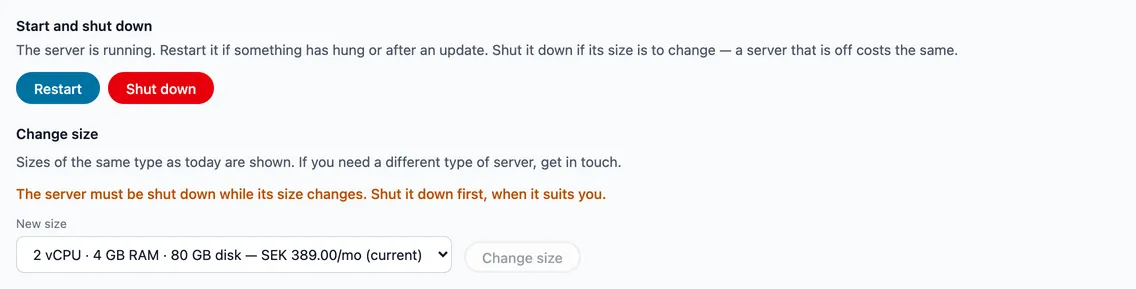
On the Manage tab you can:
- Start and shut down. Start, Restart and Shut down the server. Only what works in the server’s current state is shown: a server that is off can be started, one that is running can be restarted or shut down. A server that is off costs the same as one that is running.
- Change size. The server must be shut down while its size changes, so you choose when it stops. The list shows the sizes of the same type as the server has today, with the price per month. Today’s size is preselected and marked current. The standard bundled sizes count as one type, so such a server can also change to a size with an Intel or AMD processor — the list says which. If you need a different type of server, get in touch. If a size has a larger disk than today’s, you can choose to make the disk larger too — that cannot be undone, and the server can then only change to sizes with at least as large a disk. Start the server again when the change is done.
How the actions work
Every action — on the Manage tab, and backups and snapshots below — is confirmed in a box that says what will happen, before it is done. Some take a while, a shutdown for example: a message in the corner says it is in progress, and when it is done the page updates by itself and the message says so. While something is in progress, nothing else can be done with the server, on any of the tabs. If it takes unusually long the page stops waiting — click Refresh after a while.
Who can do what?
| Member | Administrator | Owner | |
|---|---|---|---|
| See the server | ✅ | ✅ | ✅ |
| Start, shut down, restart | ✅ | ✅ | |
| Take a snapshot | ✅ | ✅ | |
| Turn on backups | ✅ | ✅ | |
| Change to a more expensive size | ✅ | ✅ | |
| Change to a cheaper size | ✅ | ||
| Turn off backups, delete snapshots | ✅ |
Backups
The top of the tab says whether backups are on and what they cost.
- Turn on backups takes a backup of the server once a week, and those from the last four weeks are kept. Backups cost a fixed amount per month, however many there are — the box that opens says how much.
- Turn off backups means no new backups are taken. Those that exist stay until they are removed as usual, within four weeks. To keep a particular state for longer, take a snapshot first.
The table shows when each backup was taken and how large it is.
Snapshots
A snapshot is an image of a server or volume taken at a given moment, kept until it is deleted. Snapshots are priced by size, per month, for as long as they exist.
Take a snapshot is at the top of the tab: give it a name, or keep the suggestion, and choose Take snapshot. When it is done the page updates and it appears in the table.
The table is shown once there are snapshots, of both the server and its attached volumes. The Of column says which. An owner can delete a snapshot with the bin at the end of its row. The row disappears once the snapshot is gone, and a message says it has been deleted.
Volumes
Extra disks attached to the server, with size and price per month.