New backup account
Create a backup account — name, contact address, password and the modules that cost extra.
A backup account is what you sign in to the backup client and the panel with. A computer or server can have its own, or several can share one.
Requires the admin or owner role. Others see a line saying who can create accounts.
Open the page with New account in the list of backup accounts.
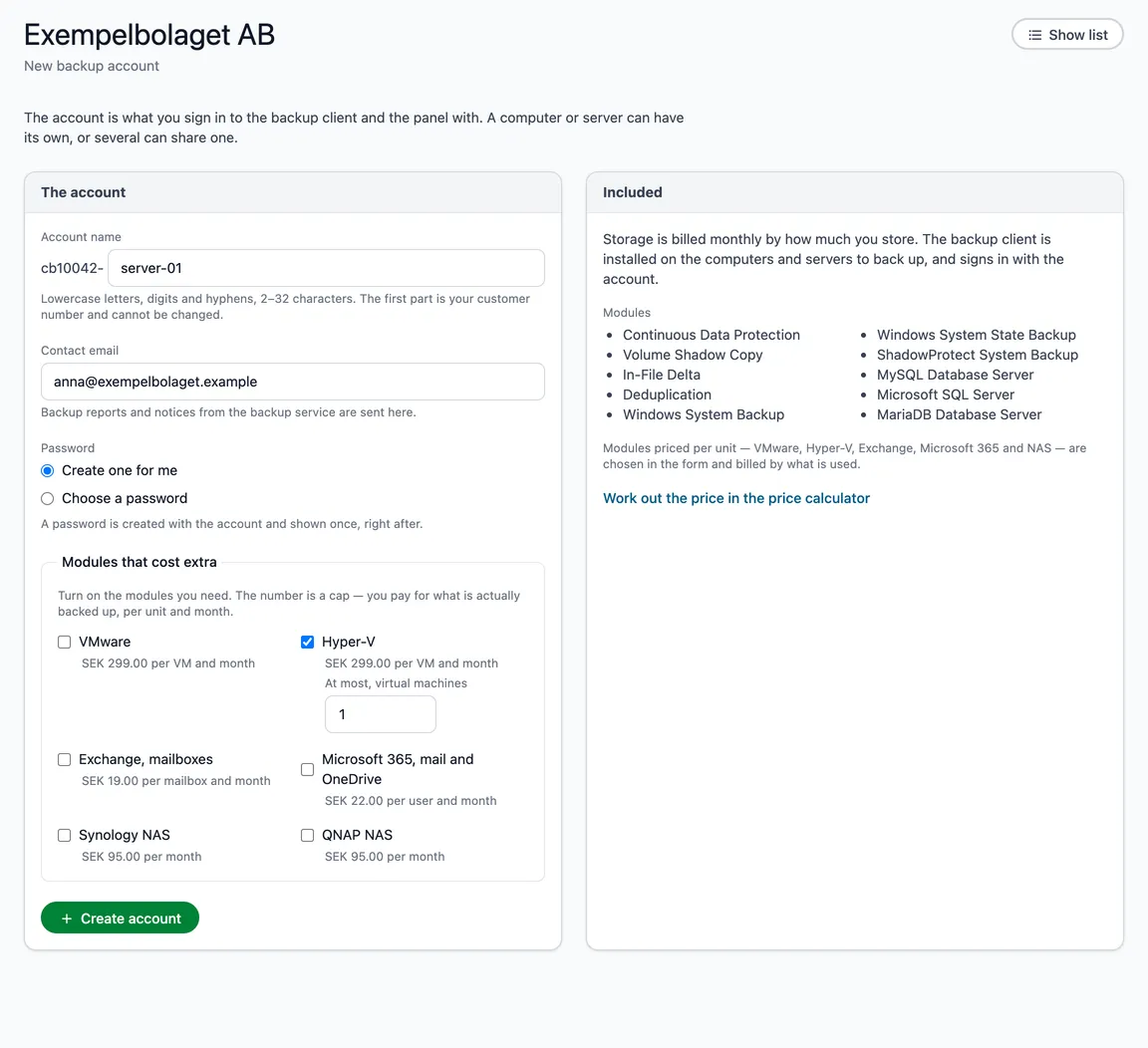
Fill in
- Account name — the first part is your customer number, such as
cb4632-, and cannot be changed. Type the rest: lowercase letters, digits and hyphens. - Contact email — backup reports and notices are sent here. Your own address is suggested; change it to a shared IT address if you like.
- Password — Create one for me, or Choose a password and type it twice (at least 12 characters).
Modules that cost extra
The account has the standard modules turned on — they are listed in the Included card. Modules priced per unit are turned on in the Modules that cost extra box:
- VMware, Hyper-V, Exchange, mailboxes and Microsoft 365, mail and OneDrive — tick the box and set a cap, such as the most virtual machines the account may back up. You pay per unit actually backed up, not for the cap.
- Synology NAS and QNAP NAS — a fixed price per month.
The price is shown next to each module.
Create the account
Choose Create account and confirm in the box that opens. Storage is billed every month from now on.
If we created the password, it is shown once, right after, together with the account name and buttons that copy them. Save the password then — it is not shown again, and we cannot see it either. From there you open the panel to download the backup client.