Order a new subscription
Order a new Microsoft 365 subscription straight from the licence catalogue.
When your company needs a Microsoft 365 product it does not have yet, you can order it yourself. Find the product in the licence catalogue and choose the order icon at the end of its row — or start from Add subscription on the subscription list, which takes you to the catalogue.
Who can order: the admin or owner role at your company. With the member role the page tells you so instead of showing the order form.
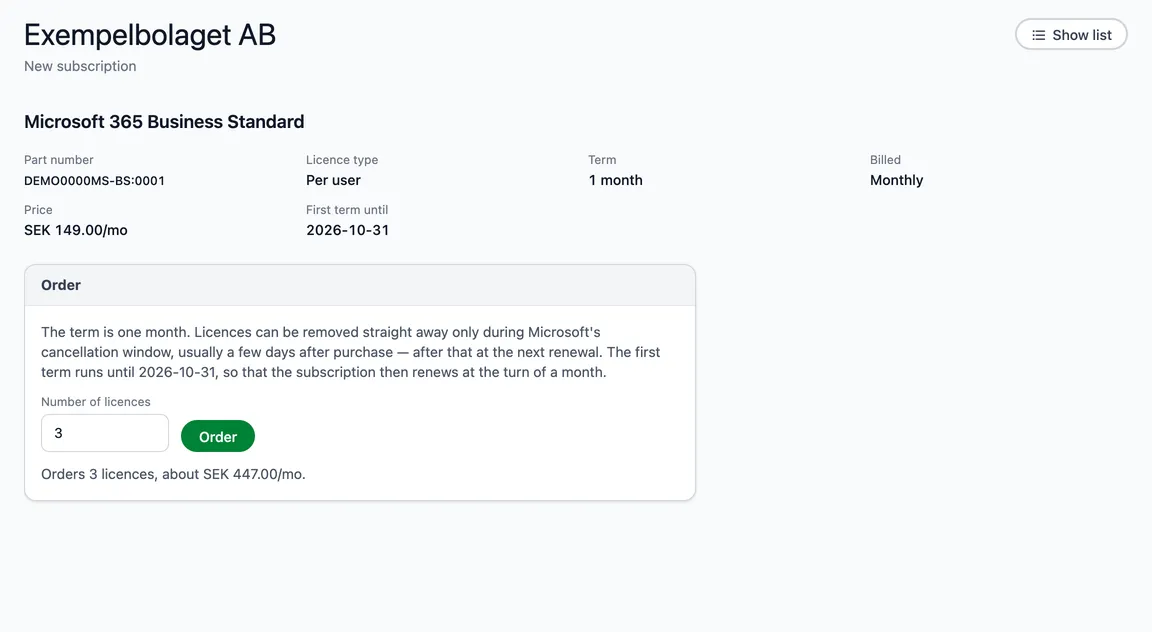
What you see
The product’s name, Part number, Licence type, the Term (1 month or 1 year), how it is Billed (monthly or yearly), your Price per licence and First term until.
The subscription follows the calendar months. The first term ends at the turn of a month — for a monthly subscription the last day of this month, for a yearly one the turn of the month just before the anniversary. After that it renews at the turn of the month, like your other subscriptions. The first term is therefore shorter than a full term.
The term is how long you commit to the licences. Licences can be removed straight away only during Microsoft’s cancellation window — usually a few days after purchase — and after that at the next renewal. See A subscription.
Place the order
- If your company has more than one Microsoft 365 environment, choose which one the subscription is for.
- Enter the Number of licences. The line under the field shows what the order will cost.
- Choose Order (green), then confirm with Order in the box that opens.
- You see that the order has been sent. The new subscription shows in the subscription list as Awaiting activation until Microsoft has activated it, usually within a few minutes. You can change it once it is active.
You can order at most 100 licences at a time.
When the order form is not shown
- You already have this subscription — the same product with the same term and billing. Add licences to it instead: choose Open the subscription.
- This product cannot be ordered here — it is not available to order from the portal. Get in touch and we will help you.
If the page says We do not know whether the order went through, wait a few minutes and check the subscription list before you try again, so that you do not get two subscriptions.
Every order is recorded with who placed it and when, and Incabus is notified.