Two-factor authentication
Add a second step to sign-in using a code from an authenticator app.
Two-factor authentication means signing in takes two things: your password, and a short code from an app on your phone. If someone learns your password, it is not enough to get into your account.
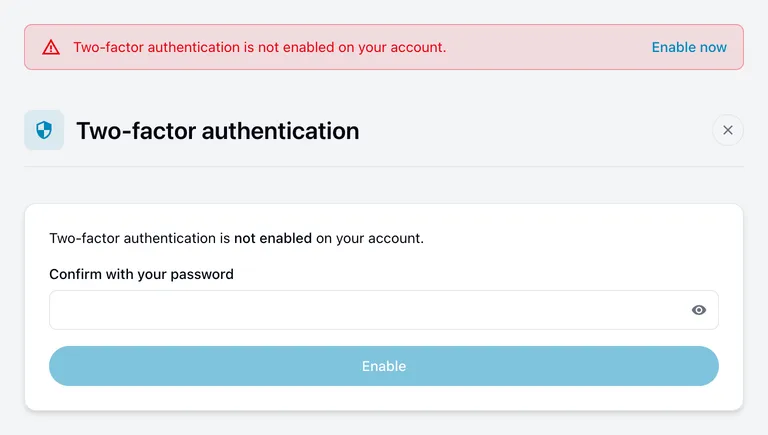
This page shows whether it is switched on, and lets you turn it on or off.
If you have no password
If Microsoft, Google or GitHub is your only way of signing in, you will see a note instead of any settings, and that is correct — there is nothing to set up here. They check who you are, so your second step is whatever you have configured with them. Change it in your Microsoft, Google or GitHub account settings.
If you have a password as well as a connected Microsoft, Google or GitHub account, you will see the settings and they do apply. Two-factor authentication here protects the password route; Microsoft, Google or GitHub protects theirs. The two are separate, and switching this on does not affect how you sign in with them.
The rest of this page applies only to accounts that sign in with an email address and a password.
Turning it on
You will need an authenticator app on your phone first. Microsoft Authenticator, Google Authenticator and 1Password all work — any app that generates six-digit codes will do.
- Enter your password under Confirm with your password and choose Enable.
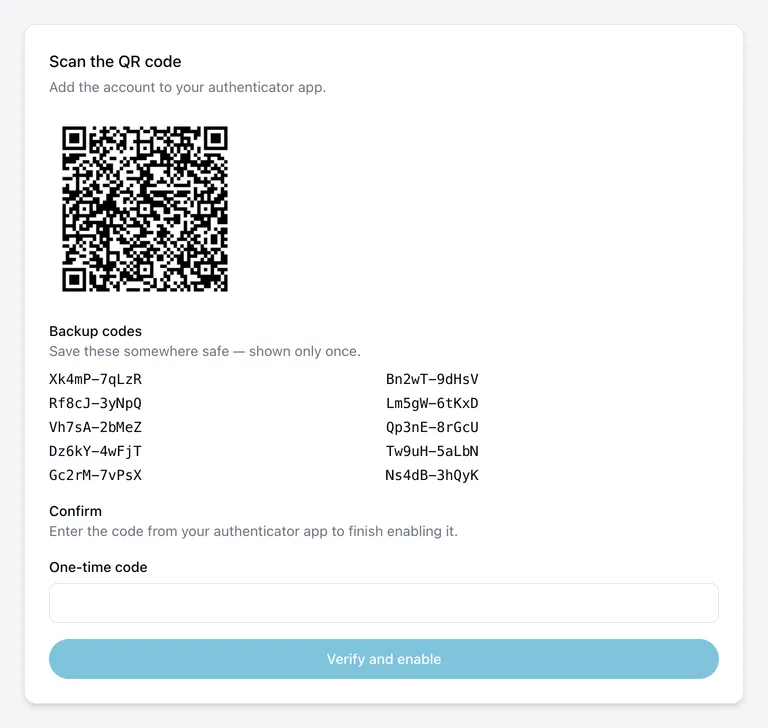
- A QR code appears. In your authenticator app, add a new account and scan it.
- Save your backup codes. They are shown at this point and never again. Keep them somewhere you can reach without your phone — a password manager, or printed and stored safely.
- Your app now shows a six-digit code for Incabus. Type it in and choose Verify and enable.
It is not switched on until step 4 succeeds. If you leave the page before then, nothing changes and you can start over.
From your next sign-in onwards, you will be asked for a code after your password.
Backup codes
Backup codes are single-use codes that work in place of your app. They exist for the day your phone is lost, broken, or wiped.
You see them once, while turning two-factor authentication on. We cannot show them again afterwards — not because of a policy, but because they are not stored in a readable form.
To get a fresh set, turn two-factor authentication off and on again.
Each code works once. Enter one at sign-in exactly as it was shown to you,
including the hyphen and the capital letters — they are compared exactly, so
ab12C-de34F is not the same as AB12C-DE34F.
Turning it off
Enter your password and choose Disable.
Your account then relies on your password alone, and your old backup codes stop working. If you are switching to a new phone, turning it off and on again is the way to move it — set up the new phone during the process, and save the new backup codes.
If you cannot sign in
Choose Lost your phone? Use a backup code on the code prompt, and enter one of the codes you saved. That signs you in, and the code is then used up.
Once you are in, set two-factor authentication up again on your new phone — turn it off and on, which also gives you a fresh set of backup codes.
If you have no codes left, or never saved them, contact us. We can confirm who you are and remove two-factor authentication from the account.