Entering your two-factor code
The six-digit code step during sign-in, and what to do if you cannot complete it.
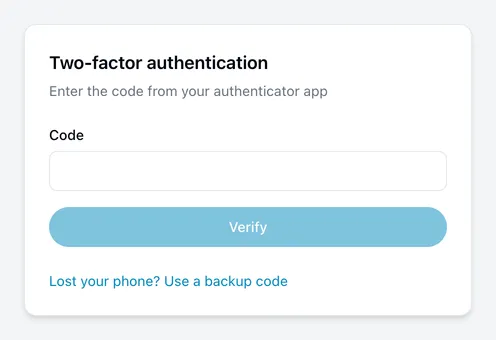
You see this page during sign-in when two-factor authentication is switched on for your account. Your password was accepted; this is the second step.
What to do
Open your authenticator app, find the Incabus entry, and type the six-digit code into Code. Then choose Verify.
The code changes every 30 seconds. If it expires while you are typing, wait for the next one rather than correcting the old one.
If the code is rejected
- Use the newest code. The one on screen when you started may already have rolled over.
- Check you picked the right entry. Authenticator apps list several accounts, and codes from a different one look identical.
- Check your phone’s clock. These codes are time-based, so a clock that has drifted produces codes we cannot match. Turning on automatic date and time fixes it.
If you cannot get a code at all
Lost the phone, replaced it, or removed the app — choose Lost your phone? Use a backup code below the button, and enter one of the codes you saved when you set two-factor authentication up.
Type it exactly as it was shown, including the hyphen and any capital letters. They are compared exactly, so a phone keyboard capitalising the first letter is enough to have it rejected.
Each code works once. Once you are signed in, set two-factor authentication up again on your new phone — turning it off and on gives you a fresh set of codes.
If you have no codes left, or never saved them, contact us. We can confirm who you are and remove two-factor authentication from the account.