Change your password
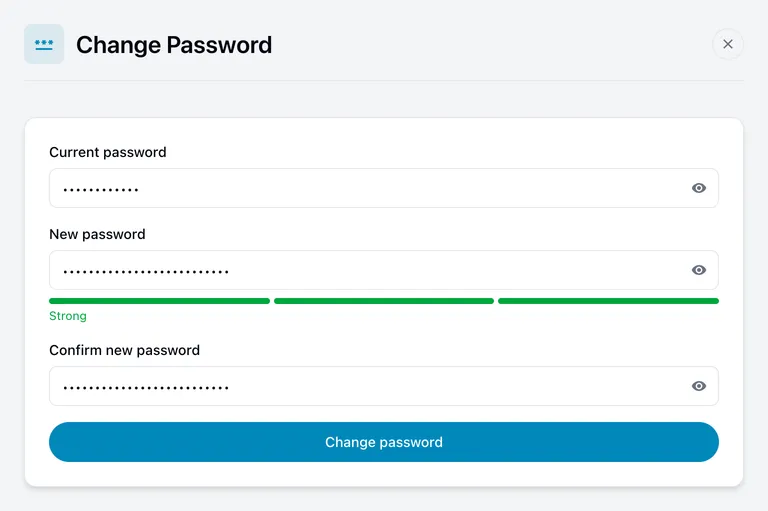
Set a new password, and see how strong it is as you type.
Use this page to replace your password with a new one. You need to know your current password — if you do not, reset it instead.
How to do it
- Enter your Current password.
- Enter your New password, then repeat it under Confirm new password.
- Choose Change password.
A green Password changed. appears when it worked. If something was wrong — usually the current password — a red message says so and nothing is changed.
Choosing a password
The minimum is 8 characters, but length helps more than anything else. The bar under the field fills in as you type and reads Weak, Fair or Strong, based on:
- how long it is — 12 characters or more counts for more than 8
- a mix of capital and small letters
- at least one number
- at least one symbol
A long phrase you can remember beats a short complicated one you cannot. You do not have to reach Strong to save, but it is worth aiming for.
If you have no password
If Microsoft, Google or GitHub is your only way of signing in, you will see a note instead of the form. That is correct — there is no password on this account to change. Change your Microsoft, Google or GitHub password with them instead.
If you have a password as well as a connected account, the form works normally. Connecting Microsoft, Google or GitHub adds a way to sign in without removing your password, so it is still worth keeping a good one.
Related
- Two-factor authentication — a second step on top of your password
- Where you are signed in