Backup
Your company's backup with Incabus — the sign-in, what is stored and what it costs per month, and your jobs and servers.
Backup backs up your physical and virtual servers to Incabus. Your company has one backup account, and this page is that account: how you sign in, how much is stored, what it costs per month, and which jobs run on which servers. More servers do not need another account — each server gets its own job on the same account.
Open it under Backup → Overview in the menu. Every role can see the page.
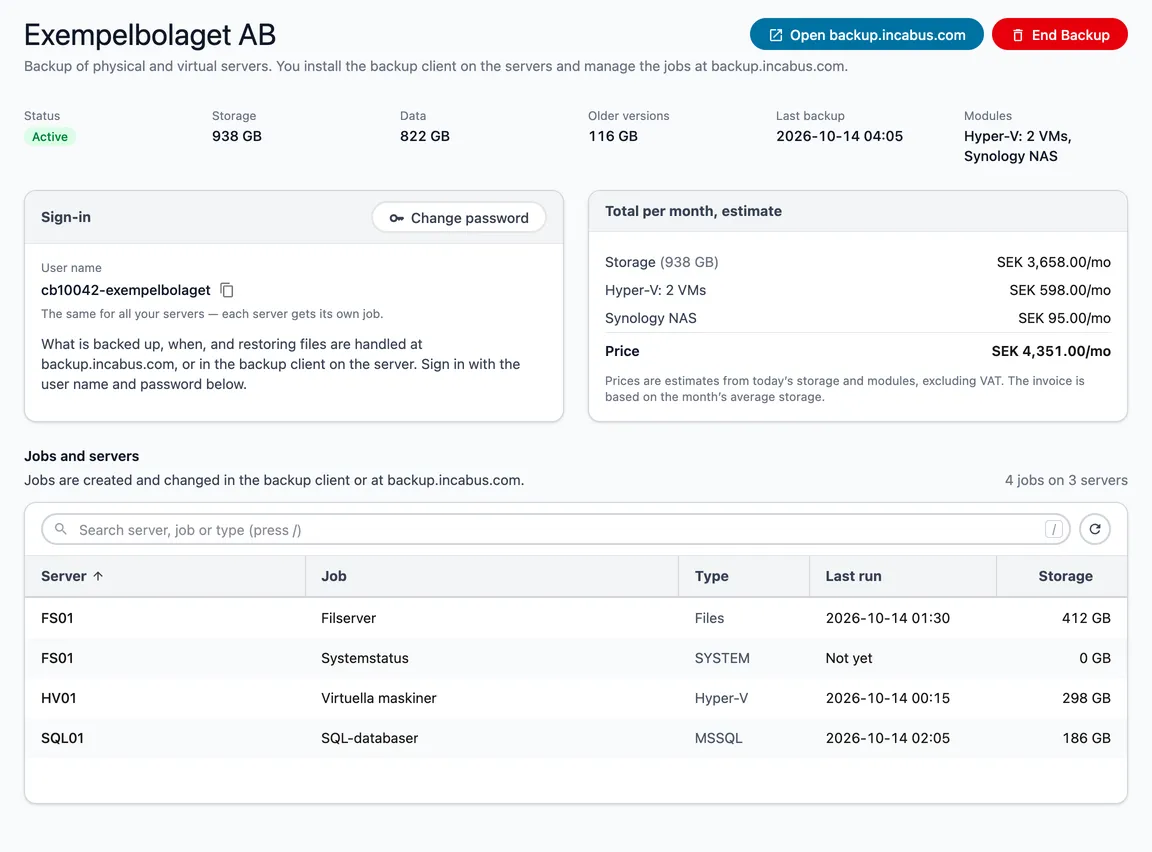
The details at the top
- Status — Active, Suspended, or To be deleted with the date if you have ended Backup.
- Storage — data and older versions together, and each on its own under Data and Older versions.
- Last backup — when the account last backed up.
- Modules — the modules that cost extra and are in use, such as Hyper-V: 2 VMs.
Sign-in
The Sign-in card shows the user name, with a button that copies it. The same user name is used for all your servers. What is backed up, when, and restoring files are handled at backup.incabus.com or in the backup client on the server — Open backup.incabus.com at the top right takes you there.
Change password in the card’s header opens a page of its own — see Change password. It requires the administrator or owner role.
Total per month
The Total per month, estimate card has a line for storage and one for each module in use, and the total. The price is worked out from today’s storage and modules, excluding VAT. The invoice is based on the month’s average storage, so the amounts may differ a little. Storage gets cheaper per GB the more you store — see Price calculator. Included means the account is not invoiced.
Jobs and servers
The table shows every job on the account and the server it runs on, with its type, when it last ran and how much it stores. The number of jobs and servers is shown to the right of the heading. Search by server, job or type, sort with the column headings, and fetch the latest with Refresh. Jobs are created and changed in the backup client or at backup.incabus.com.
End Backup
End Backup at the top right opens a page of its own — see End Backup. It requires the administrator or owner role.
No Backup yet
If your company does not have Backup, the page says No backup yet, and the Get started with Backup card shows the way:
- Activate Backup. You get a user name and choose a password — the same for all your servers. See Activate Backup.
- Install the backup client on each computer or server to back up, and sign in with the account. The client is at backup.incabus.com.
- Choose what to back up, and when, in the client or the panel.
Activating requires the administrator or owner role. Others see a line saying who can.