Domains
Your company's domain names with us — when they expire, renewal, the price and where they point.
Here you see your company’s domain names with us: when each domain expires, whether it renews automatically, what it costs per year and whether it points at our name servers. Click a domain to see everything about it and change it.
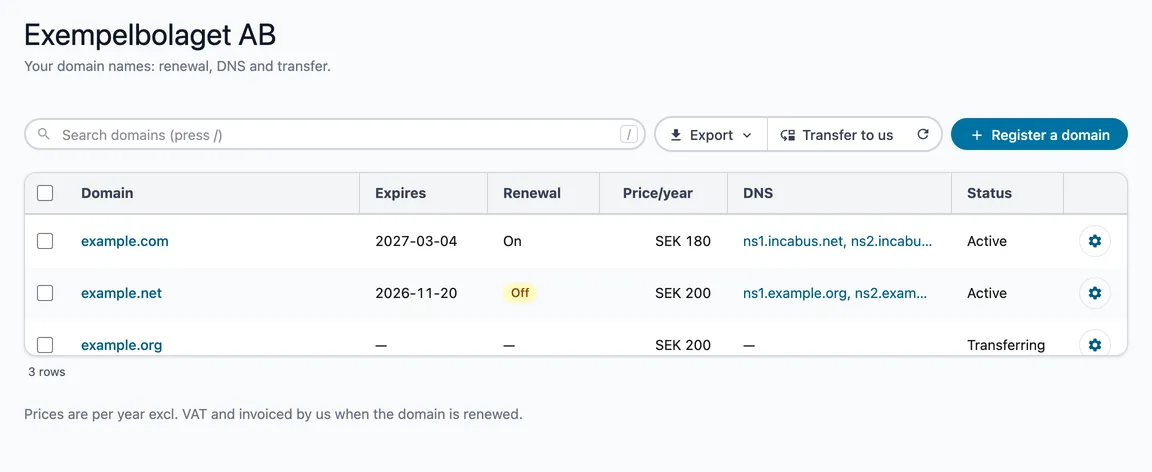
Open the page under Domains → Overview in the menu. Every role can see the domains. Registering, transferring and changing them requires the admin or owner role.
Which company?
The page shows the company chosen in the customer picker in the header. If your company has no domains with us, the page shows what Domains is instead: what is included and how it works. Search and register a domain and Transfer a domain here are there for admins and owners; others see the link to pricing.
The table
| Column | |
|---|---|
| Domain | The domain name. Click it to open the domain’s settings. |
| Expires | When the registration runs out. |
| Renewal | On: the domain renews automatically, one year at a time. Off: it expires. |
| Price/year | The renewal price per year excl. VAT. Included for a domain that is part of your agreement. |
| DNS | Where the domain points — see below. |
| Status | Active, or where a transfer to us stands. |
The cog at the end of the row also opens the domain’s settings. Search for the domain in the search box.
The DNS column
The column shows the domain’s name servers according to the registry — what the world sees — for example ns1.incabus.net, ns2.incabus.net, ns3.incabus.net. If they don’t fit, the line ends in three dots; hover over it to see them all.
- If the company has a zone for the domain under DNS, the name servers are a link to the zone and its records.
- Incabus name servers, no zone (yellow) — the domain points at us, but the company has no zone for it under DNS. The domain then does not answer, and website and e-mail do not work. Click to create the zone.
- Zone deleted (yellow) — the domain points at us, but its zone is among the deleted zones. Click to restore it.
Change name servers on the domain’s settings, under Change name servers.
Status during a transfer
A domain being transferred to us is in the list straight away, as Transferring. If the transfer has stopped — refused, wrong transfer code or locked at the current registrar — it says Transfer stopped in yellow. Hover to see the state, and open the domain to try again with a new code. See Transfer a domain to us.
The buttons
Above the table, next to the search box:
- Register a domain in blue — search for and register a new name, see Register a domain.
- Export — the list as PDF or Excel, with the table’s columns: what the list shows, or only the domains you have ticked. Every role can export.
- Transfer to us — move a domain from another registrar, see Transfer a domain to us.