DNS zones
Your company's domains with us, and whether the latest changes have reached our name servers.
This page shows your company’s DNS zones with us. A zone holds the records for a domain: where the web site and the e-mail are, verifications and the like. Click a zone to see and change its records.
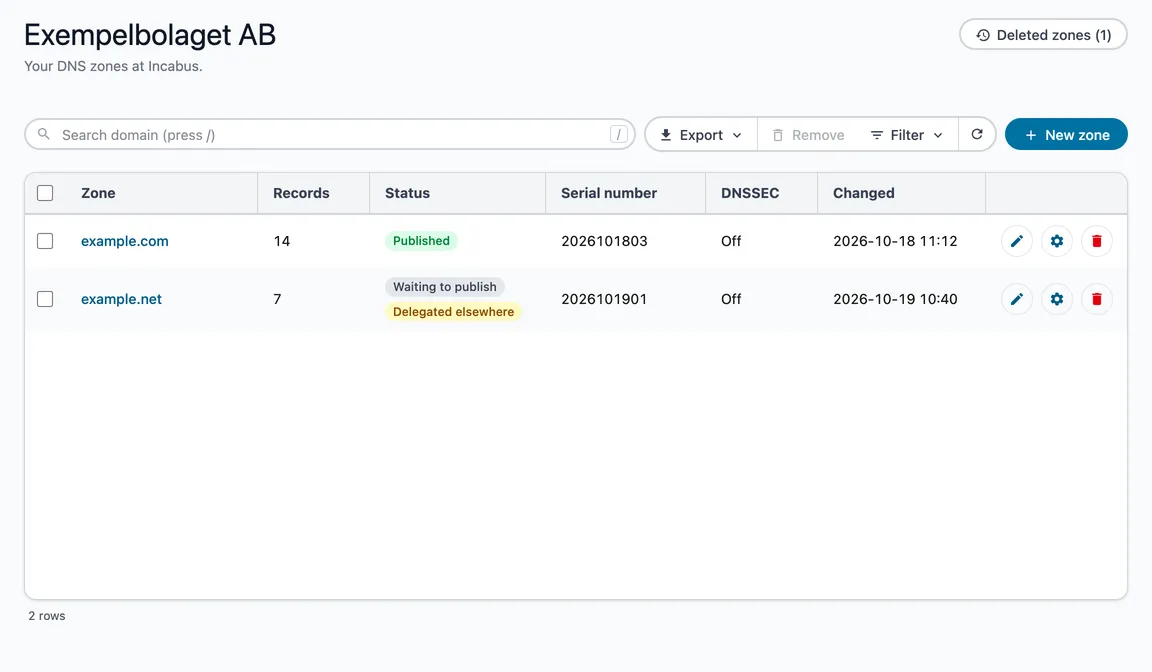
Open it under DNS → Zones in the menu. Every role can see the zones; administrators and owners can also add, change and remove them.
Which company?
The page shows the company selected in the customer picker in the header. If your company has no zones with us, the page shows what DNS in the portal is instead: what is included and how it works. An administrator or owner adds the first zone with Add your first zone, or imports a zone file with Import a zone file.
Our name servers
A zone is only used once the domain points at our name servers. You set that at the domain’s registrar — where you bought the domain. Until then other name servers answer for the domain, and nothing you change here is seen from outside.
For the zone to work, enter all three name servers at the registrar, in place of the ones that are there today:
| Name server | IPv4 | IPv6 |
|---|---|---|
| ns1.incabus.net | 217.75.117.3 | 2001:16d8:4:51::6 |
| ns2.incabus.net | 167.71.5.226 | 2a03:b0c0:2:d0::cd0:e001 |
| ns3.incabus.net | 93.158.104.8 | 2001:16d8:4:51::8 |
- The names are enough at most registrars. The addresses are only needed if the registrar explicitly asks for them.
- Add the zone and its records first, and change the name servers last — then the web site and e-mail work from the start.
- The change usually takes effect within a few hours, but can take up to a day. Meanwhile, sometimes the old name servers answer, sometimes ours.
The name servers are at the top of the page before you have any zones. After that they are under each zone’s settings, together with whether the domain actually points at us.
The table
| Column | |
|---|---|
| Zone | The domain. Click it to open the zone. |
| Records | How many records the zone has, counting our name servers and the SOA record. |
| Status | Whether the latest changes have reached our name servers — see below. |
| Serial number | Counted up on every change in the zone. |
| DNSSEC | Whether the zone is signed with DNSSEC. |
| Changed | When the zone was last changed. |
At the end of each row the pencil opens the zone, the gear its settings and the bin removes it.
Search for the domain in the search box — with å, ä and ö or as it is written in DNS (xn–…) — and filter on status with Filter.
Search all zones
The search box also looks in the records: name, value and note. That helps when you change server or provider and need to find every record pointing at the old one — search for the address, for example 203.0.113.10, or for a name like mail.protection.outlook.com.
A zone with hits is listed even if its name doesn’t match, and below the name it says, for example, 3 records match. The link opens the zone with the search filled in, so you see just those records.
Export takes the same zones as the list shows after the search.
Status
- Published — the zone on our name servers is the one you see here.
- Waiting to publish — you have changed something that has not gone out yet. It usually takes a few minutes. The status changes by itself once the change is out; you do not need to reload the page.
- Not published — the DNS server did not accept the latest change. The zone keeps being published as it was before the change. Open the zone to see what the server says, and correct the record — or get in touch.
If the domain does not point at our name servers, there is also a yellow mark in the status column: Delegated elsewhere, Partly delegated or Not delegated. Click it to see which name servers the domain points at, under the zone’s settings.
Export
Choose Export in the toolbar above the table. With nothing ticked you get the zones the list shows, after search and filter; tick zones to get only those. As PDF you get one zone per page, as Excel all the records in one sheet with the zone in the first column. Every role can export. A single zone can also be exported as a zone file, from the zone’s page.
Add and remove zones
- New zone in blue, above the table, adds a zone for a domain. See New zone.
- Moving a domain from another provider? Import the whole zone instead, see Import a zone.
- The bin on a row removes the zone. To remove several: tick them and choose Remove in the toolbar. A zone can also be removed from its own page, with Remove zone. See Remove and restore zones.
- Deleted zones at the top right shows the zones removed in the last 30 days. They can be restored. The button only shows when there is something there.