Zone settings
The zone's DNSSEC, standard TTL and SOA values, and removing the zone.
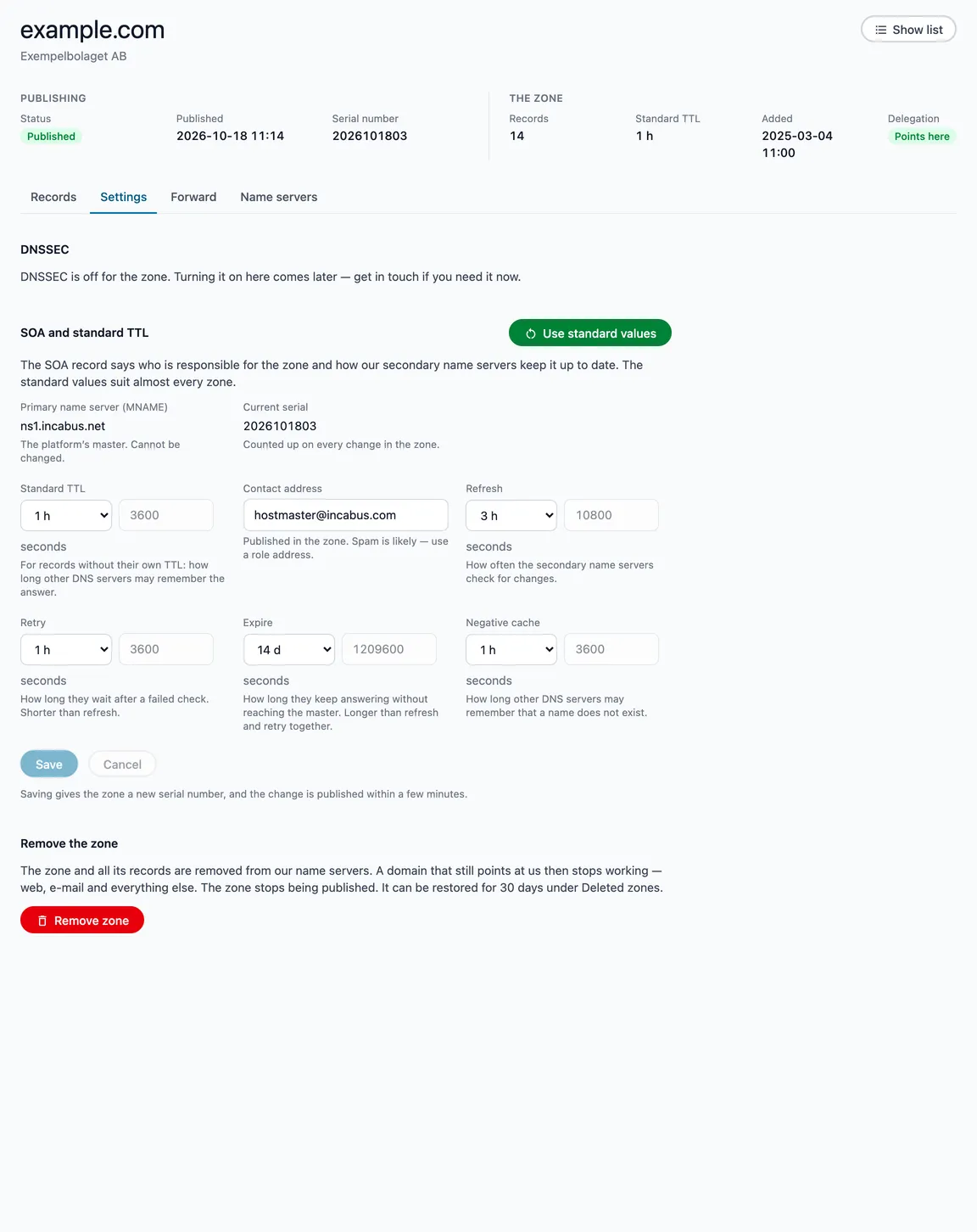
The Settings tab on the zone’s page has DNSSEC, SOA and standard TTL and Remove zone. You get here with the tab, with the gear on the SOA row, or with the gear on the zone’s row under DNS zones. Every role can see the tab; changing the SOA values and removing the zone require the administrator or owner role.
Whether the domain points at our name servers is on the Name servers tab.
DNSSEC
This says whether DNSSEC is on or off for the zone. When it is on, the state is shown too, with the DS record to give to the domain’s registrar. Turning DNSSEC on here comes later — get in touch if you need it now.
SOA and standard TTL
The SOA record says who is responsible for the zone and how our secondary name servers keep it up to date. The standard values suit almost every zone, so most people never need to change them.
The fields
| Field | Limits | |
|---|---|---|
| Primary name server (MNAME) | The platform’s master. Cannot be changed. | |
| Current serial | Counted up on every change in the zone. | |
| Standard TTL | For records without their own TTL: how long other DNS servers may remember the answer. | 1 minute – 1 week |
| Contact address | Published in the zone, so expect spam — use a role address. | |
| Refresh | How often the secondary name servers check for changes. | 5 minutes – 1 day |
| Retry | How long they wait after a failed check. | 1 minute – 1 day, shorter than refresh |
| Expire | How long they keep answering without reaching the master. | 1 day – 4 weeks, longer than refresh and retry together |
| Negative cache | How long other DNS servers may remember that a name does not exist. | 1 minute – 1 day |
Choose a value in the list, or Custom… to enter seconds.
Save
Save gives the zone a new serial number, and the change is published within a few minutes. Cancel puts the fields back as they were saved. Use standard values next to the heading saves our standard values straight away, the contact address included. If the zone already has them, nothing happens.
A zone imported from another provider may have values outside the limits. They then have to be corrected before the page can be saved — or choose the standard values.
Remove zone
Last on the tab is Remove zone (red). It takes you to the page where the zone is removed, where you type the zone’s name to confirm. The zone stops being published and can be restored for 30 days.