A zone and its records
The records in one of your company's DNS zones, and how to add, change and remove them.
This page shows a zone: whether it is published, and every record in it. You get here by clicking a zone under DNS zones.
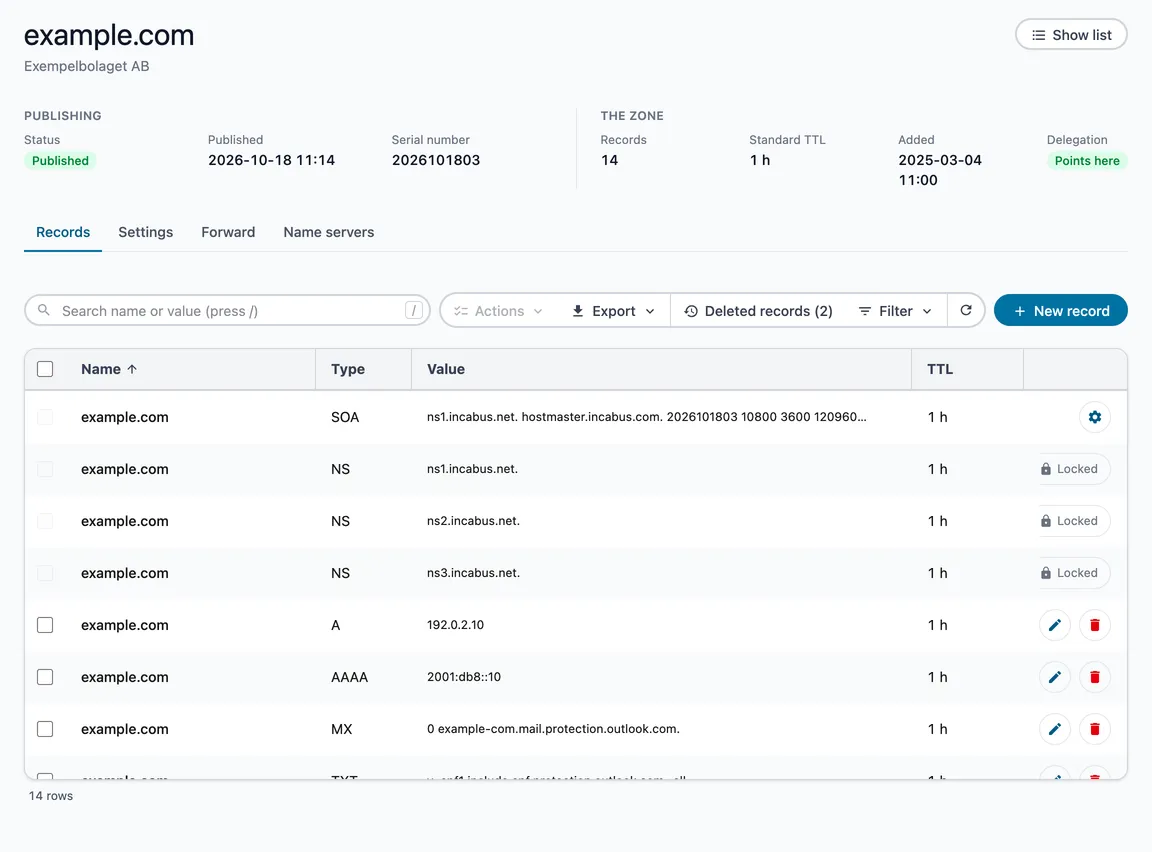
Every role can see the records; administrators and owners can also change them.
At the top
Under Publishing is the zone’s Status — Published, Waiting to publish or Not published, see DNS zones — when it was last published and its Serial number. Under The zone are the number of records, the zone’s Standard TTL, when the zone was added and Delegation: whether the domain points at our name servers. Green Points here means all is well; yellow means something needs doing, see Name servers.
If a change is waiting to be published, the status changes by itself once it is out. If it could not be published, the DNS server’s answer is shown in a yellow box. The cross hides it while you work on the page; if the problem is still there, the box is back the next time you open the zone.
Show list at the top right takes you back to the zones.
The tabs
- Records — the zone’s records, see below. This tab is shown first.
- Settings — DNSSEC, SOA and standard TTL, and Remove zone, see Zone settings.
- Forward — send the visitors on a name in the zone on to another web address, see Forward.
- Name servers — our name servers and whether the domain points at them, see Name servers. If it doesn’t point here, the tab has a yellow warning triangle.
The records
The table shows every record with its Name, Type, Value and TTL. A TTL followed by (standard) means the record has none of its own, and the zone’s standard applies.
The first rows are the zone’s own:
- SOA — who is responsible for the zone and how our name servers keep it up to date. The gear on the row opens the Settings tab.
- NS at the top of the zone — our name servers. They are marked Locked: they are written automatically and cannot be changed.
The toolbar
Above the table you search on name, value or note. Next to the search box are:
- Actions — for the records you have ticked, see below.
- Export — the zone as a file, see below.
- Filter — show only some record types.
- Deleted records — when there are removed records to restore, see Deleted records.
- Refresh (the round arrow) — reads the zone again.
- New record in blue — adds a record, see Add or change a record.
On a phone you see the search box, + and ⋯, where the rest is in a menu.
Change and remove
- The pencil on a row changes the record.
- The bin removes the record, after you confirm.
Tick several records and choose Actions:
- Copy to another zone — see Copy records to another zone.
- Change TTL and value — see Change several records.
- Remove n records — after you confirm.
A removed record stays for 30 days under Deleted records and can be restored, see Deleted records.
Every change gives the zone a new serial number and is published within a few minutes. Other DNS servers may remember the old answer for as long as the TTL says — an hour, unless it says otherwise.
Export the zone
Export in the toolbar gives the zone as a file. Every role can export.
- Export to PDF — the zone’s details and all its records in a table, to read or pass on.
- Export to Excel — the same records in a spreadsheet, with the TTL in seconds.
- Zone file (BIND, txt) — the zone as a zone file in BIND format, the form most DNS providers can import. The notes on the records come along as comments, and switched-off records stay in, commented out. Use it if you move the zone, or as a copy to keep.
Good to know
- The portal checks the whole zone before anything is saved. If an MX, SRV or NS record points at a name in the zone, that name must have an address (A or AAAA), and an address that something points at cannot be removed. Otherwise the DNS server would have refused the whole zone.
- A record marked Not published is in the zone but is not sent out.
- Show list takes you back to the zones.