New zone
Add a DNS zone for one of your company's domains.
This page adds a new zone for a domain. You get here with New zone under DNS zones. It requires the administrator or owner role.
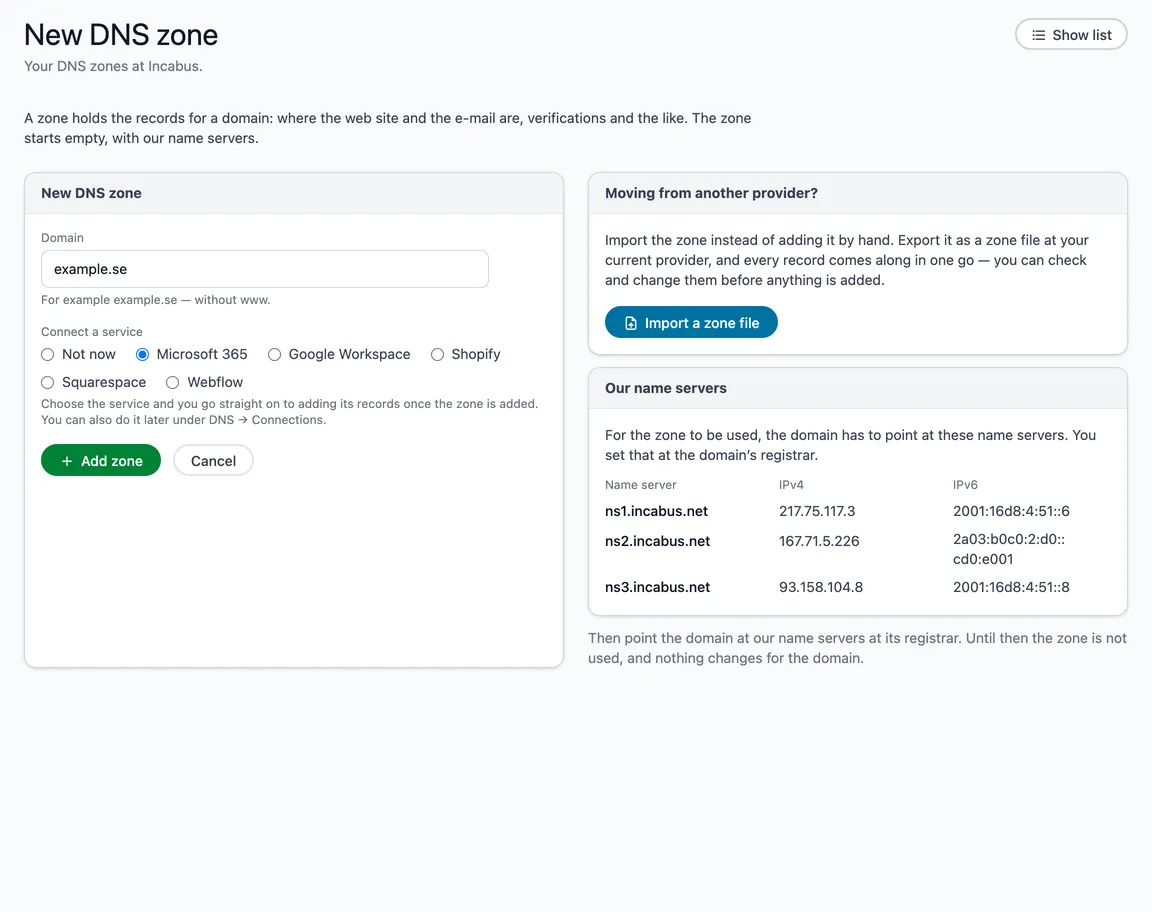
How to
- Enter the Domain — for example example.se, without www.
- Choose under Connect a service whether the domain is to be used with Microsoft 365, Google Workspace, Shopify, Squarespace or Webflow. You then go straight on to the service’s records once the zone is added, see Connections. Choose Not now to start with an empty zone.
- Choose Add zone.
The zone starts with our name servers and the SOA record, and nothing else.
Then point the domain at our name servers at the domain’s registrar: ns1.incabus.net, ns2.incabus.net and ns3.incabus.net — all three. They are listed with their addresses under the zone’s settings, which also shows when the domain points at us. Until then the zone is not used, and nothing changes for the domain. So add the records first and change the name servers last, and the web site and e-mail work from the start.
Moving from another provider?
Do not add the zone by hand — import it. Export the zone as a zone file at your current provider, and every record comes along in one go. See Import a zone.
Good to know
- If the zone already exists with us for another company it cannot be added. If the domain is yours: get in touch and we will help.
- If the zone is among your deleted zones, restore it there instead.