Copy records to another zone
Copy the selected records in a zone to another of your company's zones, and see first what happens.
When you have the same records in several zones — SPF, CAA, verifications or the same addresses — copy them here instead of typing them again. It requires the admin or owner role.
Tick the records on the zone’s page and choose Actions → Copy to another zone.
How it works
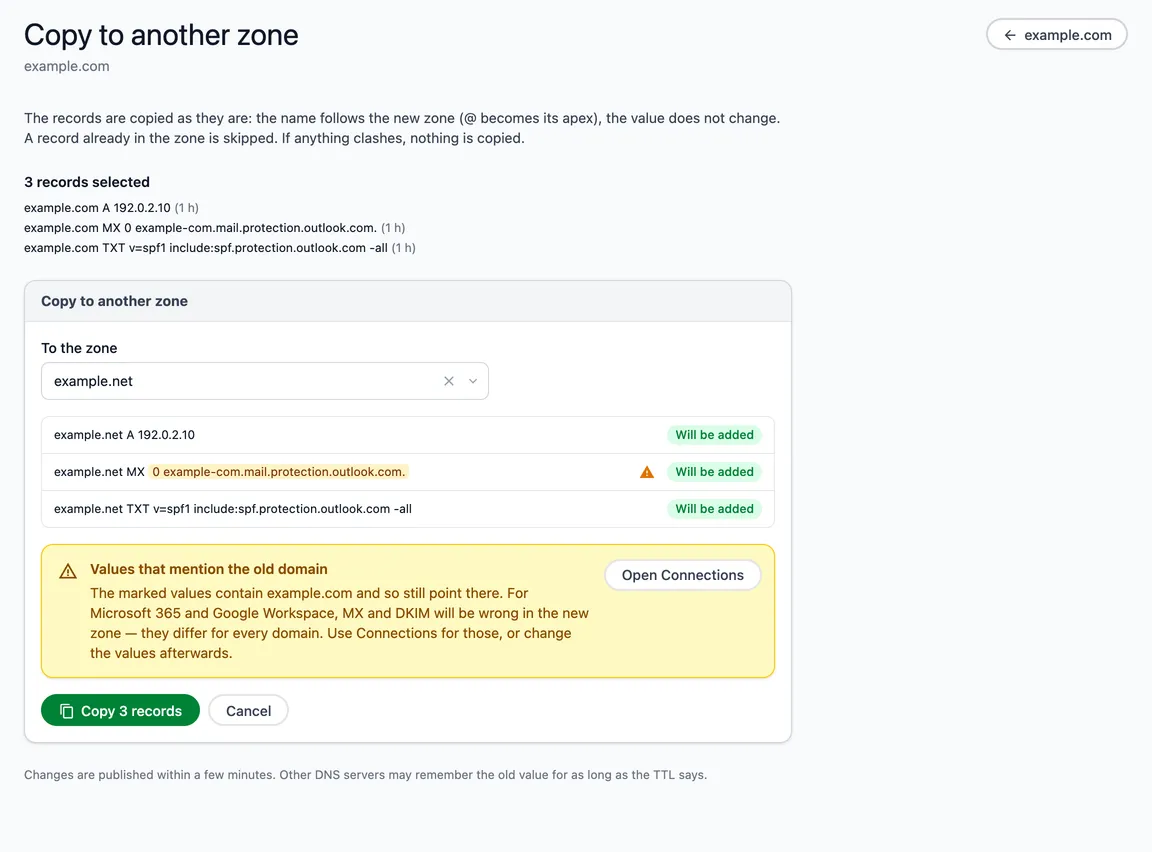
The records are copied as they are: the name follows the new zone (@ becomes its apex), the value does not change.
- The selected records are listed at the top.
- Choose the zone under To the zone — one of your company’s other zones.
- The page shows each record as it will be in that zone:
- Will be added — the record is copied.
- Already there, skipped — the zone already has exactly that record.
- Clashes with a CNAME or The type is not allowed in the zone — then nothing is copied until it is fixed.
- Choose Copy n records. You come to the new zone, which gets a new serial and is published within a few minutes.
If a copied MX, SRV or NS record points to a name in the zone without an address, the page says so and copies nothing. Copy the A record too, or add it first.
Values that mention the old domain
Values that contain the old domain are marked in yellow, with a warning. They still point there — for example a CNAME to the old domain. For Microsoft 365 and Google Workspace, MX and DKIM will be wrong in the new zone, as they differ for every domain. Use Connections for those, or change the values afterwards.