Connections
Add the records Microsoft 365, Google Workspace, Lovable, Shopify, Squarespace or Webflow need, and build SPF, DMARC and CAA.
This page adds the records a service needs to a zone. You choose the zone and the service and fill in what the service has given you; the portal works out the records, sets them against what the zone already has and shows you everything before anything is changed.
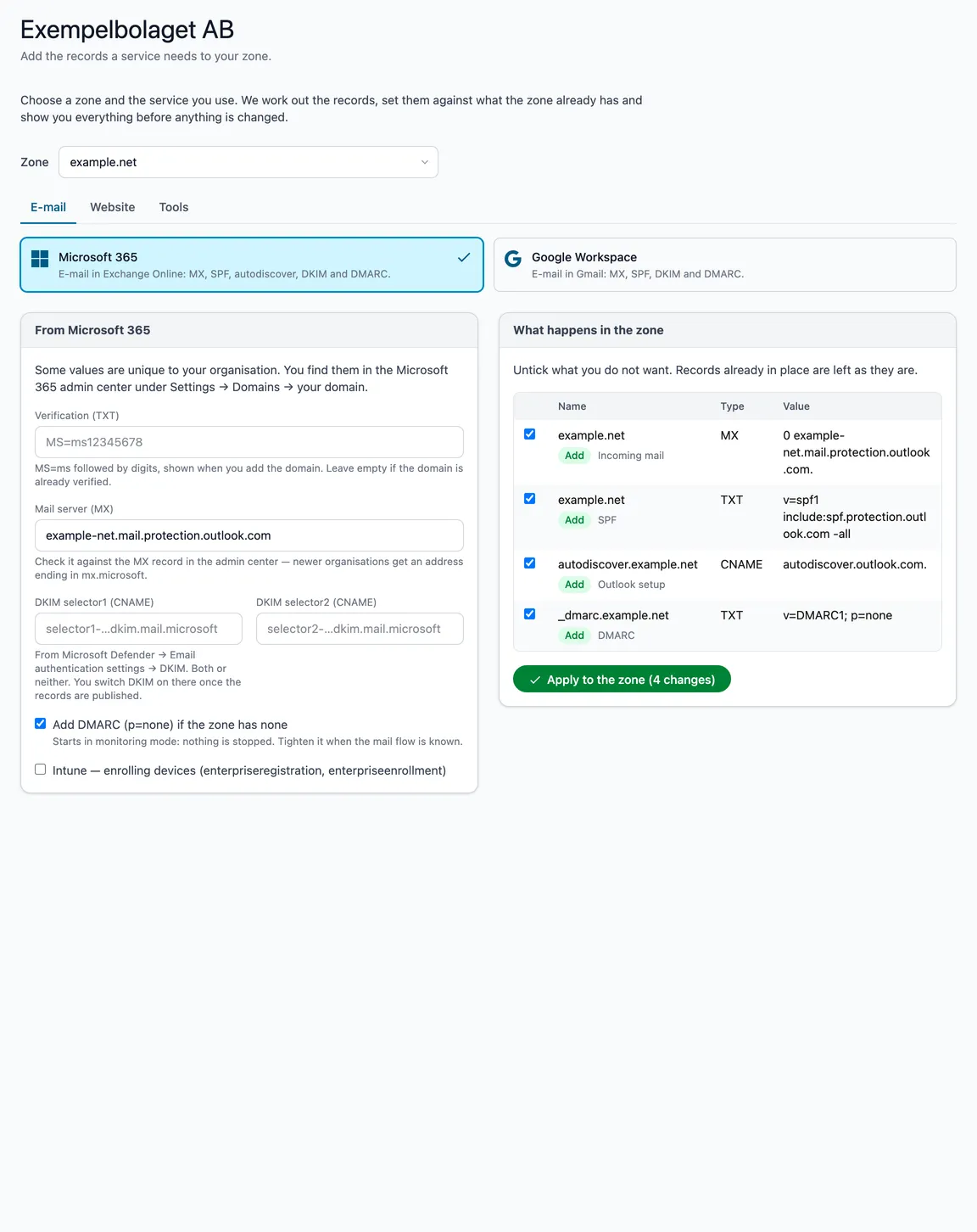
Open it under DNS → Connections in the menu, or choose a service when you add a new zone. It requires the administrator or owner role.
The services
| Group | Service | The records |
|---|---|---|
| Microsoft 365 | MX, SPF, autodiscover for Outlook, DKIM and DMARC — and Intune if you want | |
| Google Workspace | MX, SPF, DKIM and DMARC | |
| Website | Lovable | The site on the domain and www, with verification |
| Shopify | The shop on the domain and www | |
| Squarespace, Webflow | The site on the domain and www, with verification | |
| Tools | SPF | Which servers may send e-mail for the domain |
| DMARC | What receivers do with mail that fails SPF and DKIM | |
| CAA | Who may issue certificates for the domain |
How to
- Choose the domain under Add the records to the domain’s zone, and the Service. The zone and the service you last chose here are preselected — the zone also the one you last looked at under DNS zones. Check they are the right ones. The button that adds the records says which zone they go to.
- Fill in the values from the service. The page says where they are — for Microsoft 365 in the admin center under Settings → Domains, for DKIM in Microsoft Defender. Values that are not needed, like a verification for a domain that is already verified, you leave empty.
- Under What happens in the zone each record is listed with what happens to it: Add, Change, Remove or Already there. Untick what you do not want.
- Choose Apply to the zone. All changes are made at once and published within a few minutes.
What the portal takes care of
- SPF is merged. A domain may only have one SPF record, so the service is added to the one that exists.
- Old mail servers are removed when you move the e-mail. All e-mail to the domain then goes to the new service as soon as the change is published — do it only when the mailboxes are ready, or untick the row.
- DMARC is only added if the zone has none, and then in monitoring mode (p=none): nothing is stopped.
- A website never touches the e-mail. The old addresses at the top of the domain are replaced, and whatever is in the way of www is replaced — MX and the rest of the zone are left as they are.
Lovable
Lovable has no fixed addresses — every domain gets its own. Publish the project, add the domain in Lovable under Project settings → Domains and choose Connect a different way → Set up manually. That is where you find the values to fill in here:
- Address (A) — the IPv4 address Lovable shows. It goes on the domain and on www.
- IPv6 address (AAAA) — only if Lovable shows one.
- Verification for the domain (TXT) and Verification for www (TXT) — two different values starting with lovable_verify=. They go on _lovable and _lovable.www. Leave them empty if the domain is already verified.
Keep the redirect from www on in Lovable. If the zone has CAA records that allow neither Google Trust Services (pki.goog) nor Let’s Encrypt, the page warns you: then Lovable gets no certificate. Add pki.goog with the CAA tool.
The SPF, DMARC and CAA tools
The tools build the zone’s own records and start with what the zone has now, so that nothing disappears by mistake. Anything the portal does not recognise is kept as it is.
- SPF — services that send (include), addresses, the domain’s own mail servers and address, and what applies to everything else: Fail (-all) is recommended, Soft fail (~all) while testing. More than ten lookups is refused — receivers then treat the record as broken.
- DMARC — start with none and move to quarantine or reject when the reports show that all your own e-mail passes. Preferably give an address for the reports.
- CAA — only the authorities you choose may issue certificates. ⚠️ An authority that is not on the list can no longer renew certificates for the domain — check which ones your web sites and services use.