New site
Create a site in Edge step by step — the names, the target, where the names should point, and a review last.
New site in the toolbar on Edge creates a site. The guide takes one step at a time, and nothing is created until you choose Create site at the end. It requires the admin or owner role.
The steps
The steps are tabs at the top. Click any step, or move with Next and Back. Review and create in blue goes straight to the last step. A step with something left to fill in gets a warning triangle once you have left it.
Host names
The names the site should answer on, for example example.com and www.example.com. Type a name and choose Add; for a domain, www is suggested too. The first name is the site’s name, and the certificate covers all the names.
Target
Where the traffic should go:
-
Proxy — enter the Address of your server or service: an IP address or a name, with http or https and optionally a port and path. Then choose which address the server should get:
- The address the visitor typed — the most common, when your server itself has your domain.
- The server’s own address — for cloud storage or a web app at a cloud provider, which only answers on its own address.
Check the target’s certificate applies to https; turn it off if your server has its own self-signed certificate.
-
Redirect — one or more rules. The rule with the path / takes everything; add more with Add rule. Type is 302 Temporary by default — choose 301 Permanent only when you are sure, since browsers remember it for a long time. Keep the path (below the fields) sends /page on to target/page, so visitors land on the same page at the target. It is the whole path that is kept, the rule’s own part included: with the rule /shop, /shop/shoes goes to target/shop/shoes. Without the tick everyone lands on the target. The target can then not have a query string (?…). The text below the box shows what happens with your rule.
Under https, http always leads to https unless you choose Also answer on http, without going through https. Make the browser always require https (HSTS) makes browsers use only https for the names for two years — turn it on when everything works over https.
DNS
The step shows what happens with each name:
- DNS with us — we add the records when the site is created. You don’t need to do anything.
- With another provider — add the record there. For a subdomain, such as www, we suggest a CNAME to edge.incabus.com; it follows along if our address ever changes. An A record to the address works too. The top of a domain, such as example.com, can’t have a CNAME and gets an A record — if your provider has ALIAS, ANAME or CNAME flattening, you can point it to edge.incabus.com instead.
Review and create
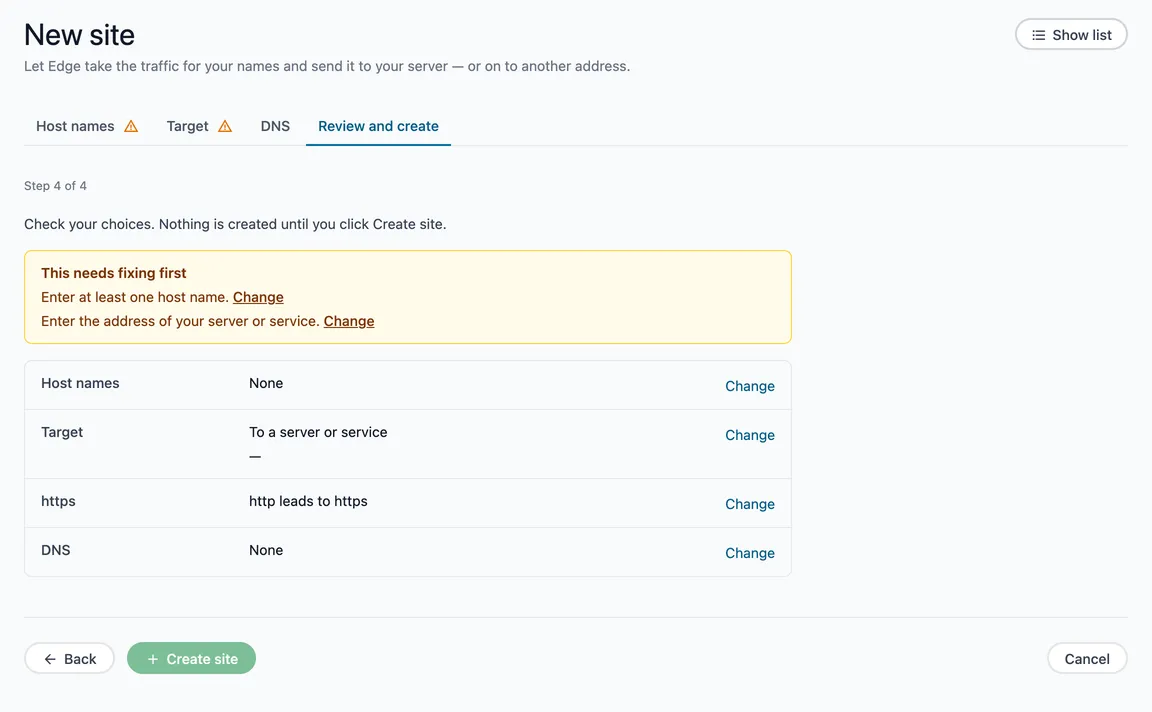
Everything you chose in plain text, with Change for each part. If something needs fixing it is shown at the top, and Create site is blocked until it is done.
Once the site is created
You come to the site’s page. The site is published within a minute, and the certificate comes when the names point to Edge — usually within a few minutes.