A site
A site's state and where the names should point, and the tabs for target, host names, access and headers.
The site’s page shows how the site is doing and gathers everything you change on it. You get here by clicking a site under Edge.
Every role can see the page; changing requires the admin or owner role.
At the top
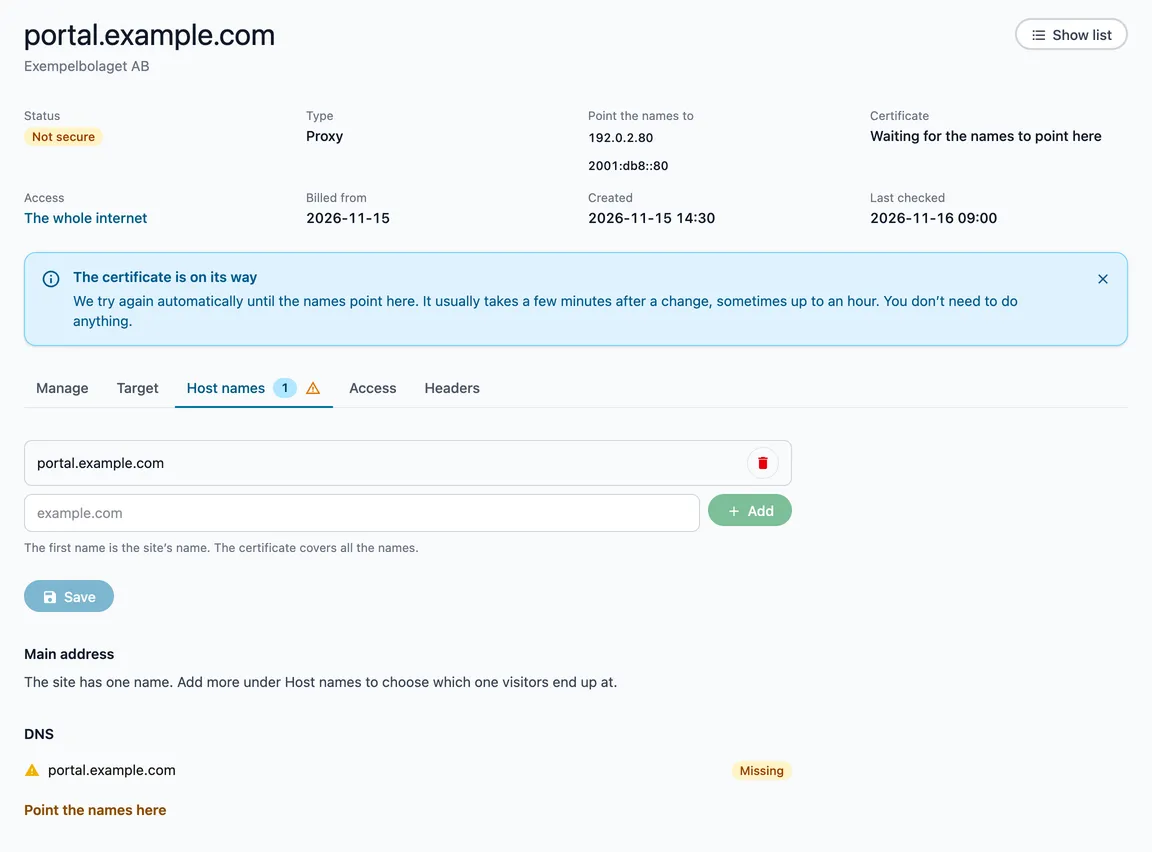
The site’s details: Status, Type, Point the names to (the address the names should point to), Certificate, Access, Billed from, Created and Last checked. The state updates by itself while the page is open.
Below the details there may be a box:
- The certificate is on its way — the names point here, and the certificate comes by itself. It usually takes a few minutes, sometimes up to an hour.
- Publishing — a change is on its way out, usually within a minute.
- The site could not be published — with the reason. The previous settings apply until the error is fixed.
The tabs
Manage
- Open the site — the site’s first name in a new tab, when it is running.
- On and off — a turned-off site answers with a page saying it is turned off. The settings stay.
- Remove the site — see Remove a site.
Target
The same choices as when the site was created, see New site: for a proxy the address of your server, which address the server gets and the certificate check; for a redirect the rules. Under https you choose whether http leads to https and whether browsers should require https (HSTS). Choose Save — the change applies within a minute.
Host names
- Host names — add names with Add and remove them with the bin. Choose Save. A new name in a zone with us gets its records in DNS straight away.
- Main address — for a proxy with several names: choose one, and all the others lead there. A redirect already sends every name to its target.
- DNS — each name with its state: Points here, Missing, Points elsewhere or With another provider, and a green check or a yellow triangle. A name with another provider gets the check when the certificate is valid — that is the proof that the name points here. If everything points here, it says you don’t need to do anything.
If something doesn’t point here, the Host names tab has a yellow warning triangle, and below the DNS state Point the names here is shown in yellow: the address to point at and what is missing. To fix it:
- If the domain is with us and the record is missing, Add the records in DNS adds it. If the name points elsewhere we don’t change it — change the record under DNS if it should point here.
- If the domain is with another provider, the tab shows the records to add there: for a subdomain a CNAME to edge.incabus.com is suggested, which follows along if our address changes, with an A record to the address as the alternative. The top of a domain gets an A record.
Access
- The whole internet — anyone can reach the site.
- Only some addresses — everyone else gets “Forbidden”. Type an IP address or a network, preferably with a note, and choose Add. My address adds the one you are on. The page says whether your own address is on the list.
Choose Save access.
Headers
Only for a proxy:
- Requests from other websites (CORS) — whether other websites may read responses from the site with JavaScript, for example an API or a font: As the server behind answers (default), Only these websites or All websites.
- Shown in a frame on other websites — which websites may show the site in a frame (iframe): As the server behind answers, Only the site’s own pages, The site’s own pages and these websites or All websites.
Websites are written as the full address with https://, without a path. Choose Save.