New app
Set up a website or WordPress, step by step, and review the choices before anything is created.
Here you set up a new app. The page takes one step at a time, and at the end you see every choice in plain text before anything is created. It requires the admin or owner role. The text under the heading says what is being created — WordPress, the default, or a static website.
Open the page with New app on Web Apps.
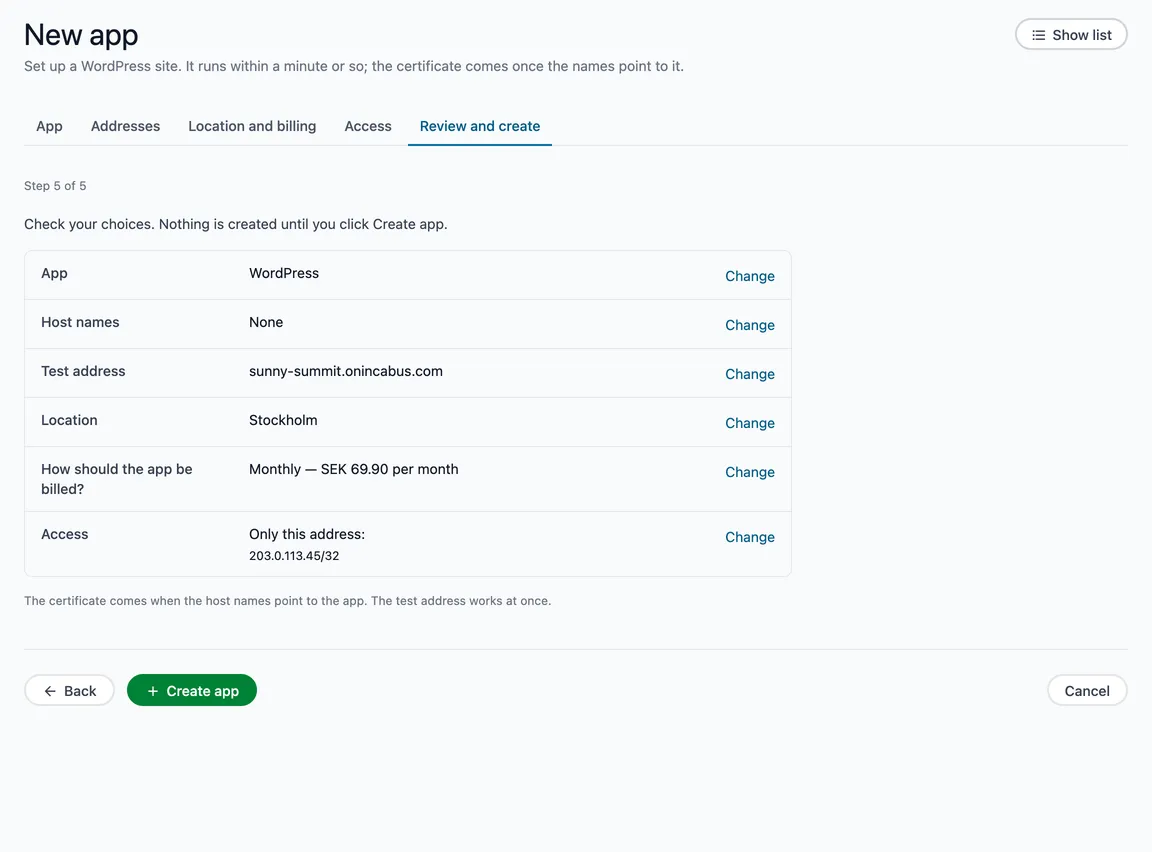
The steps
The steps are tabs at the top — App, Addresses, Location and billing, Access and Review and create. You can click them in any order. A step with something left to fix gets a warning triangle once you have left it. The defaults suit most, so you can go straight to the review.
At the bottom are Back, Next and Review and create, with Cancel on the right. Nothing is saved until you choose Create app.
App
Choose WordPress or Static website. See Web Apps for the difference.
Addresses
- Host names — the names the app should answer to, one at a time with Add. The first becomes the app’s name. Add both example.com and www.example.com if both should work; type one and the page suggests the other.
- Test address — an address under onincabus.com to try the app on before your own names point here. It is ticked from the start and works at once. Its name follows your first host name, otherwise two random words; you can type your own.
Either a host name or the test address is needed.
Location and billing
- Location — choose the one closest to your visitors.
- How should the app be billed? — Monthly, a flexible subscription without commitment, or Yearly, where you pay for a year and get a discount. The prices are in the tiles, excluding VAT. You can change the choice later under the Billing tab on the app’s page.
Access
Who can reach the app:
- The whole internet — anyone can visit the site.
- Only some addresses — everyone else gets “Forbidden”. It is the default, with your own address in the list, so that nobody else sees the site while you build it or while the WordPress installer is waiting.
Add more addresses or networks with a note. See the Access tab on the app’s page about the addresses.
Review and create
Every choice is in plain text — the app, the host names, the test address, the location, the billing with its price and the access with its addresses — with Change on each row, which takes you back to the step.
If something is missing it says so at the top under This needs fixing first, with a link to the step, and the step is marked with a warning triangle. Then the app cannot be created until it is fixed.
Choose Create app. The server sets up the app in a minute or so, and you come to the app’s page.
After the app is created
- The test address works at once.
- Your own names need to point to the app. If the zone is with us you add the records with a button under the Host names tab on the app’s page; otherwise the page shows what to add at your DNS provider.
- The certificate is issued when the names point to the app. Until then the app shows as Not secure.
- WordPress: open the site and finish the installation.