An app
An app's state and the tabs to manage it — files, host names, access, headers and billing.
The app’s page shows how the app is doing and gathers everything you do with it. You get here by clicking an app under Web Apps.
Every role can see the page; changing requires the admin or owner role. With another role the buttons are disabled, with the reason.
At the top
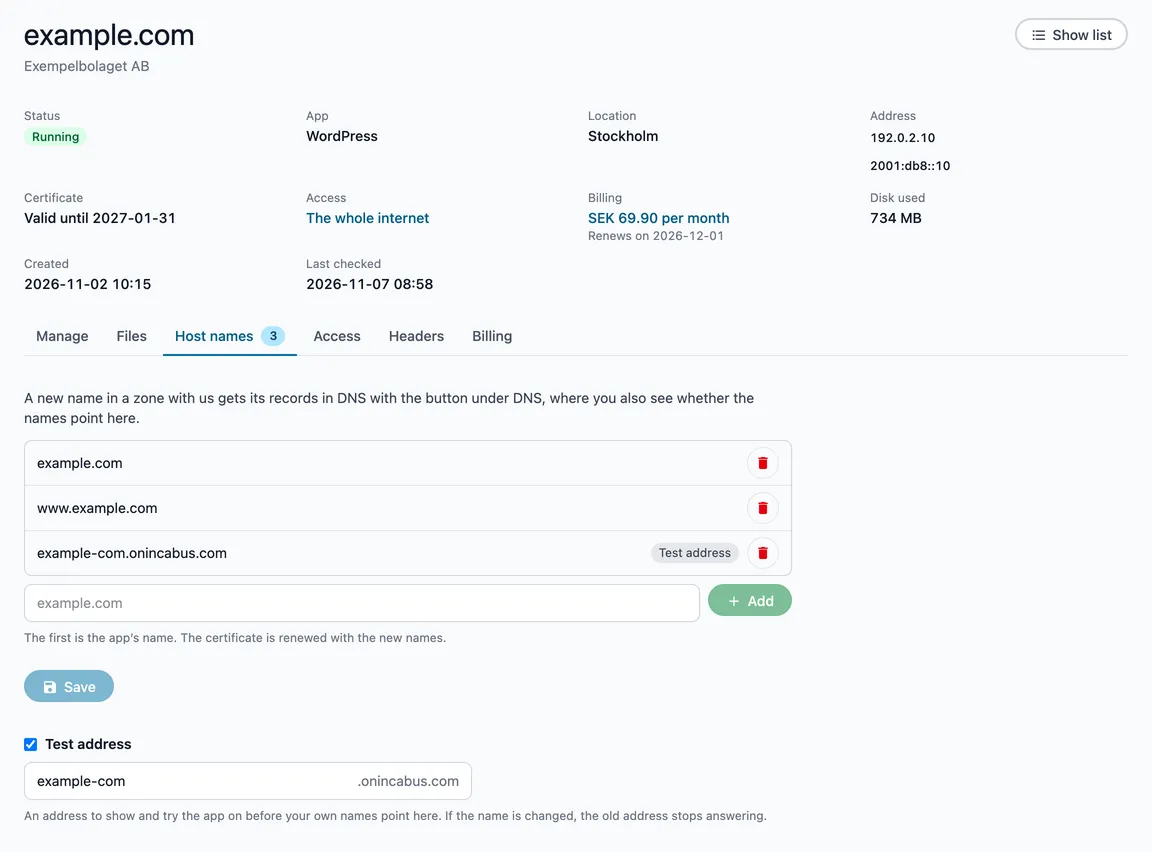
The app’s details: Status, App, Location, Address (the app’s IPv4 and IPv6), Certificate, Access, Billing, Disk used, Created and Last checked. The state updates by itself while the page is open.
Below the details there may be a box:
- The certificate is on its way — the names point here, and the certificate comes by itself. It usually takes a few minutes after a change, sometimes up to an hour. You don’t need to do anything.
- The server could not set up the app — with the reason. The app keeps its previous setup until the error is fixed.
- For WordPress, if something needs sorting out: WordPress cannot write to its files (updates may then ask for FTP details; we try to fix it automatically) or Subpages may show “Not Found” (sign in to WordPress and save Settings → Permalinks without changing anything).
The tabs
Manage
- Open the site — the app’s first name in a new tab. It is disabled, with the reason, until the name answers: the app must be running and DNS must point here.
- On and off — Turn off makes the app stop answering, but the files and the database stay, and it is billed as before. Turn on starts it again. Both are confirmed first.
- Delete the app — see Delete an app.
Files
Static website:
-
Upload files — drag files and folders from your computer into the box, or pick them with Choose files or Choose a folder. Then choose:
- Replace the whole site (default) — what you picked becomes the whole site, and everything else goes. If it is a single folder, the folder’s contents become the site.
- Add to the site — the files go into the folder you give (empty is the site’s root). A file with the same name is overwritten; nothing else is removed.
At most 100 MB and 20,000 files at a time.
-
The start page is called
index.htmlorindex.htm— in the site’s root and in every folder. If both exist,index.htmlis shown. -
Version history — every upload becomes a new version. Restore replaces the site at once with that version, also a newer one if you have gone back. The last five changes are kept.
WordPress: themes, plugins and images you add in WordPress. Sign in to WordPress takes you there — the first time to finish the installation.
Export the site packs the whole site into a zip file: for a static website everything in the site’s folder, for WordPress the folder and a fresh copy of the database. It can take a few minutes; you can leave the page meanwhile. The file can be downloaded for a day. For WordPress the file holds the database with the users’ passwords (encrypted) and wp-config.php — keep it safe.
A turned-off app cannot be uploaded to or restored; turn it on first.
Host names
- Host names — add names with Add and remove them with the bin. The first is the app’s name. Choose Save — the certificate is renewed with the new names.
- Test address — an address to show and try the app on before your own names point here. Tick the box to add one, or change the name: type a new one and choose Change test address. The old address then stops answering. Untick to remove the test address — not possible if it is the app’s only name.
- Main address — for a static website with several names: choose one, and all the others lead there. The test address is never redirected. WordPress decides its own address, and the tab says where.
- DNS — each name with its state: Points here, Record missing, Points elsewhere or DNS elsewhere, and a green check or a yellow triangle. A name with another provider gets the check when the certificate is valid. If something doesn’t point here, the Host names tab has a yellow warning triangle, and Point the names here is shown in yellow below the DNS state, with the address to point at. If records are missing in a zone with us, Add the records adds them. If a name points elsewhere we don’t change it — change the record under DNS. If DNS is with another provider, the tab shows the records to add there.
Access
Who can reach the app:
- The whole internet — anyone can visit the site.
- Only some addresses — everyone else gets “Forbidden”. Good while you build the site, or while the WordPress installer is waiting.
Type an IP address or a network (for example 203.0.113.7 or 2001:db8::/48), preferably with a note, and choose Add. My address adds the address you are on. Up to 20 addresses. The page says whether your own address is on the list — if it isn’t, you are locked out too. Many home and mobile connections change address now and then, and if you have IPv6 the browser may use it; add both addresses if you have them.
Choose Save access. It applies within a minute.
Headers
- Requests from other websites (CORS) — whether other websites may read responses from the site with JavaScript, for example an API, a font or a form: No other websites (default), Only these websites or All websites. Ordinary links and images are not affected.
- Shown in a frame on other websites — which websites may show the site in a frame (iframe): Only the site’s own pages (default), The site’s own pages and these websites or All websites.
Websites are written as the full address with https://, without a path. Choose Save.
Billing
The tab shows the Current period and when the app Renews. Choose Monthly or Yearly: a change takes effect when the current period has ended, and as soon as you pick something else the tab says from which date. The current period continues whether the app is running, turned off or removed. Pick what applies today to undo a change that has not taken effect.